


QML Advanced Tutorial 1 - Creating the Game Canvas and Blocks▲
<Unknown command>contentspageQML Advanced Tutorial
Creating the Application Screen▲
The first step is to create the basic QML items in your application.
To begin with, we create our Same Game application with a main screen like this:
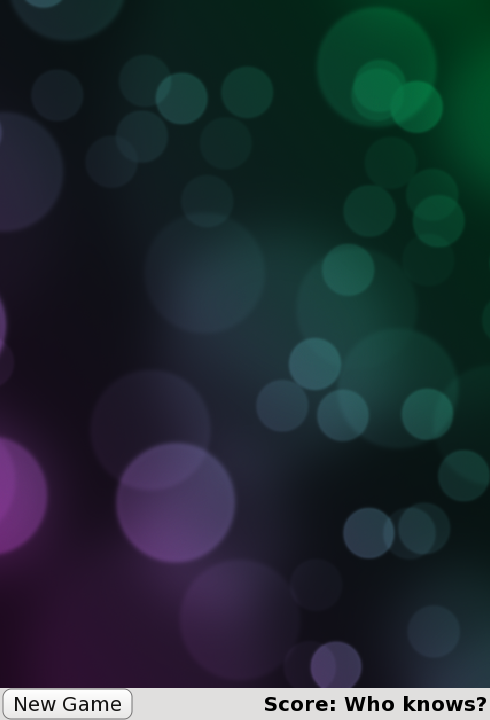
This is defined by the main application file, samegame.qml, which looks like this:
Sélectionnez
import QtQuick 2.0

Rectangle {
    id: screen

    width: 490; height: 720

    SystemPalette { id: activePalette }

    Item {
        width: parent.width
        anchors { top: parent.top; bottom: toolBar.top }

        Image {
            id: background
            anchors.fill: parent
            source: "../shared/pics/background.jpg"
            fillMode: Image.PreserveAspectCrop
        }
    }

    Rectangle {
        id: toolBar
        width: parent.width; height: 30
        color: activePalette.window
        anchors.bottom: screen.bottom

        Button {
            anchors { left: parent.left; verticalCenter: parent.verticalCenter }
            text: "New Game"
            onClicked: console.log("This doesn't do anything yet...")
        }

        Text {
            id: score
            anchors { right: parent.right; verticalCenter: parent.verticalCenter }
            text: "Score: Who knows?"
        }
    }
}
This gives you a basic game window that includes the main canvas for the blocks, a "New Game" button and a score display.
One item you may not recognize here is the SystemPalette item. This provides access to the Qt system palette and is used to give the button a more native look-and-feel.
Notice the anchors for the Item, Button and Text types are set using group (dot) notation for readability.
Adding Button and Block Components▲
Sélectionnez
import QtQuick 2.0

Rectangle {
    id: container

    property string text: "Button"

    signal clicked

    width: buttonLabel.width + 20; height: buttonLabel.height + 5
    border { width: 1; color: Qt.darker(activePalette.button) }
    antialiasing: true
    radius: 8