


Framebuffer Example▲
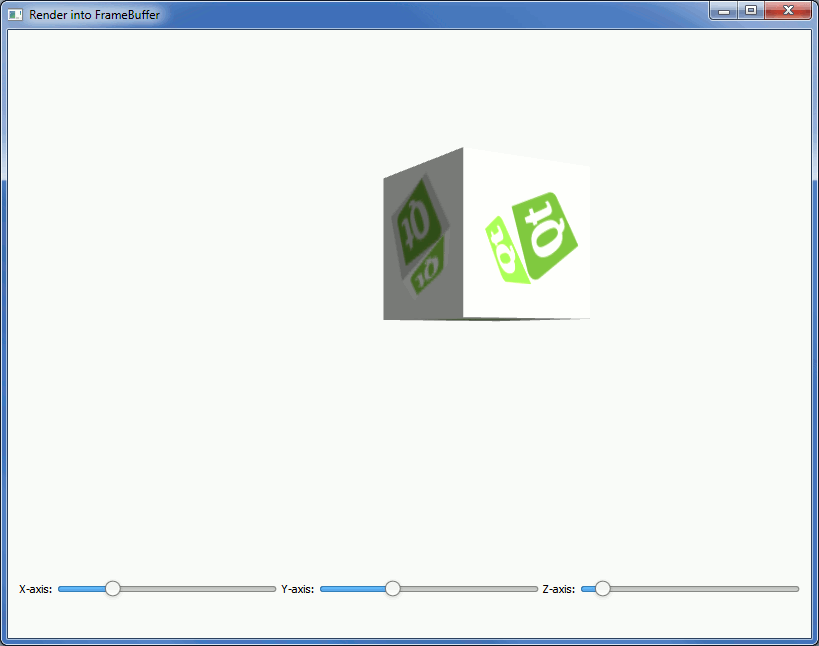
The Framebuffer Example shows how to render into a framebuffer, create a texture of it, and apply the texture to an object in normal on-screen rendering.
The example has a moving and rotating cube, which has another textured cube drawn into it via the framebuffer object. The cube in the framebuffer can be rotated using https://s from https://.
Preparing the Framebuffer▲
We first define the variables we need for the render-to-texture framebuffer:
var rttFramebuffer;
var rttTexture;
var rttWidth = 512;
var rttHeight = 512;
Then, in the initializeGL function, we create the framebuffer object:
// Create the framebuffer object
rttFramebuffer = gl.createFramebuffer();
rttFramebuffer.name = "OffscreenRenderTarget";
gl.bindFramebuffer(gl.FRAMEBUFFER, rttFramebuffer);
Creating the Texture▲
After the creation of the framebuffer, we create the texture:
// Create the texture
rttTexture = gl.createTexture();
rttTexture.name = "OffscreenRenderTargetTexture";
gl.bindTexture(gl.TEXTURE_2D, rttTexture);
gl.texParameteri(gl.TEXTURE_2D, gl.TEXTURE_MAG_FILTER, gl.LINEAR);
gl.texParameteri(gl.TEXTURE_2D, gl.TEXTURE_MIN_FILTER, gl.LINEAR_MIPMAP_NEAREST);
gl.texImage2D(gl.TEXTURE_2D, 0,
              gl.RGBA, rttWidth, rttHeight,
              0, gl.RGBA, gl.UNSIGNED_BYTE,
              null);
gl.generateMipmap(gl.TEXTURE_2D);
Then we need to bind the texture as a color attachment, create and bind a render buffer, and bind the depth attachment:
// Bind the texture as color attachment, create and bind a depth buffer
gl.framebufferTexture2D(gl.FRAMEBUFFER,
                        gl.COLOR_ATTACHMENT0,
                        gl.TEXTURE_2D, rttTexture, 0);
var renderbuffer = gl.createRenderbuffer();
gl.bindRenderbuffer(gl.RENDERBUFFER, renderbuffer);
gl.renderbufferStorage(gl.RENDERBUFFER,
                       gl.DEPTH_COMPONENT16,
                       rttWidth, rttHeight);
gl.framebufferRenderbuffer(gl.FRAMEBUFFER,
                           gl.DEPTH_ATTACHMENT,
                           gl.RENDERBUFFER, renderbuffer);
Rendering into the Framebuffer▲
In paintGL function, we first need to draw the scene into the framebuffer. We start by binding the framebuffer object and setting a viewport:
// bind the FBO and setup viewport
gl.bindFramebuffer(gl.FRAMEBUFFER, rttFramebuffer);
gl.viewport(0, 0, rttWidth, rttHeight);
Then, we need to bind the loaded texture we want to use in rendering into the framebuffer object:
// Bind the loaded texture
gl.bindTexture(gl.TEXTURE_2D, cubeTexture);
And then we can draw the textured cube into the framebuffer:
// Draw the cube to the FBO
gl.drawElements(gl.TRIANGLES, 36, gl.UNSIGNED_SHORT, 0);
Using the Framebuffer as a Texture▲
First, we bind the render-to-texture right after drawing, and generate mipmaps:
// Bind the render-to-texture and generate mipmaps
gl.bindTexture(gl.TEXTURE_2D, rttTexture);
gl.generateMipmap(gl.TEXTURE_2D);
Then we need to bind the default framebuffer (screen), and set up the viewport:
// Bind default framebuffer and setup viewport accordingly
gl.bindFramebuffer(gl.FRAMEBUFFER, 0);
gl.viewport(0, 0,
            canvas.width * canvas.devicePixelRatio,
            canvas.height * canvas.devicePixelRatio);
And finally, we draw the on-screen view:
// Draw the on-screen cube
gl.drawElements(gl.TRIANGLES, 36, gl.UNSIGNED_SHORT, 0);