


BarModelMapper Example▲
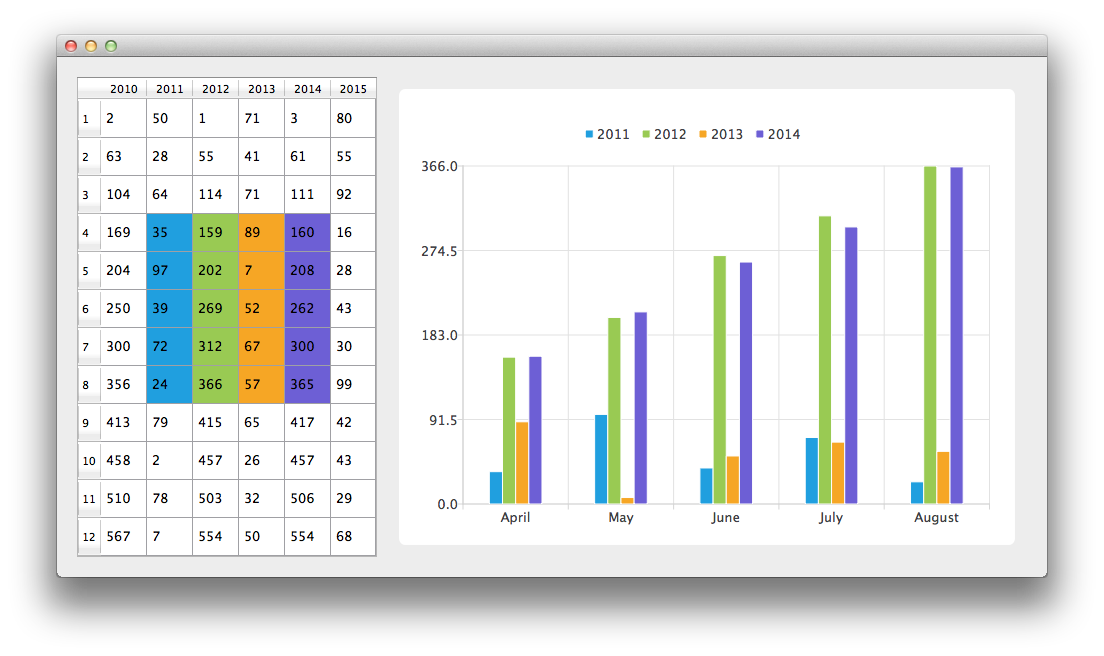
Running the Example▲
To run the example from http://, open the Welcome mode and select the example from Examples. For more information, visit http://.
Using Data Models with Bar Charts▲
Let's start by creating an instance of CustomTableModel class. The CustomTableModel class is derived from https://, and it was created for the purpose of this example. The constructor of this class populates the model's internal data store with the data required for our chart example.
m_model = new CustomTableModel;We now have a model with data that we would like to display both on the chart and in a https://. First, we create https:// and tell it to use the model as a data source. To have the data presented nicely, the minimum width of the table view is set and its headers resize mode changed to stretch.
// create table view and add model to it
QTableView *tableView = new QTableView;
tableView->setModel(m_model);
tableView->setMinimumWidth(300);
tableView->horizontalHeader()->setSectionResizeMode(QHeaderView::Stretch);
tableView->verticalHeader()->setSectionResizeMode(QHeaderView::Stretch);
m_model->setParent(tableView);
Now we need a https:// instance to display the same data on the chart. We also enable animations. It makes it easier to see how a modification to the model's data affects the chart.
QChart *chart = new QChart;
chart->setAnimationOptions(QChart::AllAnimations);
The first line of the code below creates new bar series. Variables firstRow and rowCount are used to define a custom model mapping. Custom mapping allows to take only part of the data from the model. In this case data from 5 rows starting with the row with the index 3. The following three lines create an instance of the https:// class and specify that the data for the bar sets should be taken from the model's columns with indexes from 1 to 4 (inclusive). To create a connection between the series and the model we set both of those objects to https://.
Finally the series is added to the chart.
QBarSeries *series = new QBarSeries;

int first = 3;
int count = 5;
QVBarModelMapper *mapper = new QVBarModelMapper(this);
mapper->setFirstBarSetColumn(1);
mapper->setLastBarSetColumn(4);
mapper->setFirstRow(first);
mapper->setRowCount(count);
mapper->setSeries(series);
mapper->setModel(m_model);
chart->addSeries(series);
To show in https:// which data corresponds with which bar set, this example uses table coloring. When series is added to the chart, it is assigned a color based on the currently selected theme. Code below extracts that color from the series and uses it to create colored https://. Coloring of the view is not a part of the https:// functionality.
// for storing color hex from the series
QString seriesColorHex = "#000000";

// get the color of the series and use it for showing the mapped area
QList<QBarSet *> barsets = series->barSets();
for (int i = 0; i < barsets.count(); i++) {
    seriesColorHex = "#" + QString::number(barsets.at(i)->brush().color().rgb(), 16).right(6).toUpper();
    m_model->addMapping(seriesColorHex, QRect(1 + i, first, 1, barsets.at(i)->count()));
}
We would like to have categories placed on the chart's axis that describe what the data means. Next snippet shows how to do that.
QStringList categories;
categories << "April" << "May" << "June" << "July" << "August";
QBarCategoryAxis *axisX = new QBarCategoryAxis();
axisX->append(categories);
chart->addAxis(axisX, Qt::AlignBottom);
series->attachAxis(axisX);
QValueAxis *axisY = new QValueAxis();
chart->addAxis(axisY, Qt::AlignLeft);
series->attachAxis(axisY);
To avoid setting up the https:// we use the https:// class that does it for us. The https:// object pointer is used as a parameter of the https:// constructor. To make the render look nicer Antialiasing is turned on and the minimum size of the chartView widget is set.
QChartView *chartView = new QChartView(chart);
chartView->setRenderHint(QPainter::Antialiasing);
chartView->setMinimumSize(640, 480);
Finally, we place both widgets in a layout and use the layout as the application layout.
// create main layout
QGridLayout *mainLayout = new QGridLayout;
mainLayout->addWidget(tableView, 1, 0);
mainLayout->addWidget(chartView, 1, 1);
mainLayout->setColumnStretch(1, 1);
mainLayout->setColumnStretch(0, 0);
setLayout(mainLayout);
The application is ready. Try modifying the data in the table view and see how it affects the chart.
List of Files▲
Files:
List of Files▲
-
barmodelmapper/barmodelmapper.pro
-
barmodelmapper/customtablemodel.cpp
-
barmodelmapper/customtablemodel.h
-
barmodelmapper/main.cpp
-
barmodelmapper/tablewidget.cpp
-
barmodelmapper/tablewidget.h