


Qt Quick 2 Legend Example▲
The Qt Quick 2 legend example shows how to make an interactive legend for a graph.
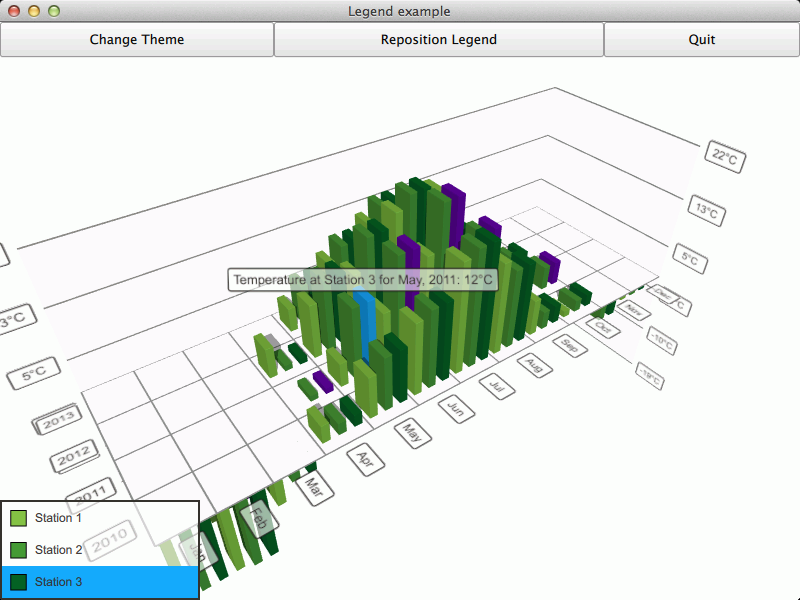
The interesting thing about this example is displaying the legend. We'll concentrate on that and skip explaining the basic functionality - for more detailed QML example documentation, see Qt Quick 2 Scatter Example.
Running the Example▲
To run the example from Qt Creator, open the Welcome mode and select the example from Examples. For more information, visit Building and Running an Example.
Legend▲
The legend is simply a column of custom LegendItem items inside a transparent rectangle. Each item is supplied with a series and the graph theme:
ColumnLayout {
    anchors.fill: parent
    anchors.margins: parent.border.width
    spacing: 0
    clip: true
    LegendItem {
        Layout.fillWidth: true
        Layout.fillHeight: true
        series: station1
        theme: barGraph.theme
    }
    LegendItem {
        Layout.fillWidth: true
        Layout.fillHeight: true
        series: station2
        theme: barGraph.theme
    }
    LegendItem {
        Layout.fillWidth: true
        Layout.fillHeight: true
        series: station3
        theme: barGraph.theme
    }
}
The legend items consist of a marker rectangle, which indicates the color of the series, and a text field, which shows the name of the series. The colors we get from the series and the theme supplied at legend item initialization:
property Theme3D theme
property Bar3DSeries series
    ...
RowLayout {
    anchors.fill: parent
    spacing: 0
    clip: true
    Item {
        id: markerSpace
        Layout.minimumWidth: 20
        Layout.minimumHeight: 20
        Layout.fillWidth: true
        Layout.fillHeight: true
        Layout.alignment: Qt.AlignVCenter
        Rectangle {
            x: parent.x + parent.width / 4
            y: parent.y + parent.height / 4
            width: parent.width / 2
            height: width
            border.color: "black"
            color: series.baseColor
        }
    }
    Item {
        height: markerSpace.height
        Layout.fillWidth: true
        Layout.fillHeight: true
        Layout.alignment: Qt.AlignVCenter
        Layout.minimumWidth: 100
        Text {
            anchors.fill: parent
            text: series.name
            verticalAlignment: Text.AlignVCenter
            clip: