


Qt Quick Demo - Photo Surface▲
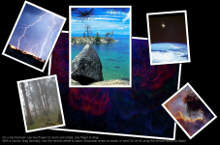
Photo Surface demonstrates how to use a https:// with a https:// and a https:// to access images from a folder selected by a user and how to handle dragging, rotation and pinch zooming within the same item using a https:// that contains a https://.
All the app code is contained in one QML file, photosurface.qml. Inline JavaScript code is used to place, rotate, and scale images on the photo surface.
Running the Example▲
To run the example from http://, open the Welcome mode and select the example from Examples. For more information, visit http://.
Creating the Main Window▲
To create the main window for the Photo Surface app, we use the https:// QML type as the root item. It automatically sets up the window for use with https:// graphical types:
Window {
    id: root
    visible: true
    width: 1024; height: 600
    color: "black"
    property int highestZ: 0
    property real defaultSize: 200
    property var currentFrame: undefined
To use the https:// type, we must import it:
import QtQuick.Window 2.1Accessing Folder Contents▲
We use a https:// QML type together with the https:// to display GIF, JPG, and PNG images located in a folder:
        Repeater {
            model: FolderListModel {
                id: folderModel
                objectName: "folderModel"
                showDirs: false
                nameFilters: imageNameFilters
            }
To use the https:// type, we must import it:
import Qt.labs.folderlistmodel 1.0We use a https:// to enable users to select the folder that contains the images:
    FileDialog {
        id: fileDialog
        title: "Choose a folder with some images"
        selectFolder: true
        folder: picturesLocation
        onAccepted: folderModel.folder = fileUrl + "/"
    }
To use the https:// type, we must import https://:
import QtQuick.Dialogs 1.0We use the fileDialog.open() function to open the file dialog when the app starts:
Component.onCompleted: fileDialog.open()Users can also click the file dialog icon to open the file dialog. We use an https:// QML type to display the icon. Inside the https:// type, we use a https:// with the onClicked signal handler to call the fileDialog.open() function:
    Image {
        anchors.top: parent.top
        anchors.left: parent.left
        anchors.margins: 10
        source: "resources/folder.png"
        MouseArea {
            anchors.fill: parent
            anchors.margins: -10
            onClicked: fileDialog.open()
            hoverEnabled: true
            onPositionChanged: {
                tooltip.visible = false
                hoverTimer.start()
            }
            onExited: {
                tooltip.visible = false
                hoverTimer.stop()
            }
Displaying Images on the Photo Surface▲
We use a https:// as a delegate for a https:// to provide a frame for each image that the https:// finds in the selected folder. We use JavaScript Math() methods to place the frames randomly on the photo surface and to rotate them at random angles, as well as to scale the images:
            Rectangle {
                id: photoFrame
                width: image.width * (1 + 0.10 * image.height / image.width)
                height: image.height * 1.10
                scale: defaultSize / Math.max(image.sourceSize.width, image.sourceSize.height)
                Behavior on scale { NumberAnimation { duration: 200 } }
                Behavior on x { NumberAnimation { duration: 200 } }
                Behavior on y { NumberAnimation { duration: 200 } }
                border.color: "black"
                border.width: 2
                smooth: true
                antialiasing: true
                Component.onCompleted: {
                    x = Math.random() * root.width - width / 2
                    y = Math.random() * root.height - height / 2
                    rotation = Math.random() * 13 - 6
                }
Handling Pinch Gestures▲
We use a https:// that contains a https:// in the photo frames to handle dragging, rotation and pinch zooming of the frame:
                PinchArea {
                    anchors.fill: parent
                    pinch.target: photoFrame
                    pinch.minimumRotation: -360
                    pinch.maximumRotation: 360
                    pinch.minimumScale: 0.1
                    pinch.maximumScale: 10
                    pinch.dragAxis: Pinch.XAndYAxis
                    onPinchStarted: setFrameColor();
We use the pinch group property to control how the photo frames react to pinch gestures. The pinch.target sets photoFrame as the item to manipulate. The rotation properties specify that the frames can be rotated at all angles and the scale properties specify that they can be scaled between 0.1 and 10.
In the https://'s onPressed signal handler, we raise the selected photo frame to the top by increasing the value of its z property. The root item stores the z value of the top-most frame. The border color of the photo frame is controlled in the onEntered signal handler to highlight the selected image:
                    MouseArea {
                        id: dragArea
                        hoverEnabled: true
                        anchors.fill: parent
                        drag.target: photoFrame
                        scrollGestureEnabled: false  // 2-finger-flick gesture should pass through to the Flickable
                        onPressed: {
                            photoFrame.z = ++root.highestZ;
                            parent.setFrameColor();
                        }
                        onEntered: parent.setFrameColor();
To enable you to test the example on the desktop, we use the https://'s onWheel signal handler to simulate pinch gestures by using a mouse:
                        onWheel: {
                            if (wheel.modifiers & Qt.ControlModifier) {
                                photoFrame.rotation += wheel.angleDelta.y / 120 * 5;
                                if (Math.abs(photoFrame.rotation) < 4)
                                    photoFrame.rotation = 0;
                            } else {
                                photoFrame.rotation += wheel.angleDelta.x / 120;
                                if (Math.abs(photoFrame.rotation) < 0.6)
                                    photoFrame.rotation = 0;
                                var scaleBefore = photoFrame.scale;
                                photoFrame.scale += photoFrame.scale * wheel.angleDelta.y / 120 / 10;
                            }
                        }
The onWheel signal handler is called in response to mouse wheel gestures. Use the vertical wheel to zoom and Ctrl and the vertical wheel to rotate frames. If the mouse has a horizontal wheel, use it to rotate frames.