


Places (QML)▲
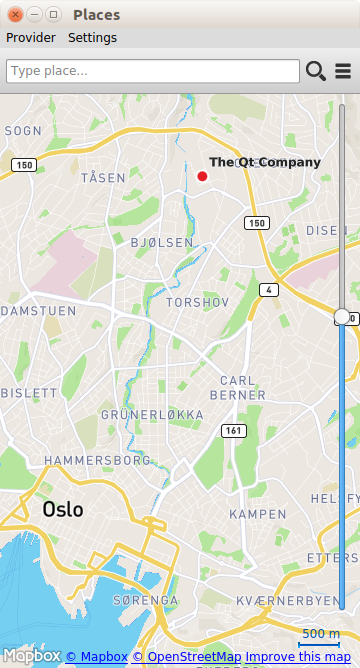
The Places example demonstrates how to search for Places. In particular it shows how further information such as reviews, images and related content can be retrieved.
Running the Example▲
To run the example from http://, open the Welcome mode and select the example from Examples. For more information, visit http://.
The example can work with any of the available geo services plugins. However, some plugins may require additional https:// in order to function correctly. https:// can be passed on the command line using the --plugin argument, which takes the form:
--plugin.<parameter name> <parameter value>Refer to the documentation for each of the geo services plugins for details on what plugin parameters they support. The default plugin used by this example is https://, which does not require any parameters.
Overview▲
The Places example presents an application window displaying a map. At the top of the window is a search box, which is used to enter a place search query. To search for a place enter a search term into the text box and click the magnifying glass icon. To search for a place by category, click the category icon to display the list of available categories and select the desired category. The place search query will be for places that are near the current location shown on the map.
For some plugins like https:// the search box provides search term suggestions when three or more characters are entered. Selecting one of the suggestions will cause a place search to be performed with the selected search text.
Clicking on a search result will display details about the place. If a places has rich content (editorials, reviews and images), these can be accessed by the buttons on the details page. To find similar places click the "Find similar" button.
The geo service provider can be changed by accessing the "Provider" menu.
Displaying Categories▲
Before search by category can be performed, the list of available categories needs to be retrieved. This is achieved by creating a https://.
CategoryModel {
    id: categoryModel
    hierarchical: true
}
The https:// type provides a model of the available categories. It can provide either a flat list or a hierarchical tree model. In this example, we use a hierarchical tree model, by setting the https:// property to true. The https:// property is set during example intalization.
Next we create a https:// to display the category model.
ListView {
    id: root
    property variant categoryModel
    property variant rootIndex

    signal searchCategory(variant category)
    signal showSubcategories(variant index)

    snapMode: ListView.SnapToItem

    model: DelegateModel {
        id: delegeteDataModel
        model: root.categoryModel
        rootIndex: root.rootIndex
        delegate: CategoryDelegate {
            onSearchCategory: root.searchCategory(category);
            onShowSubcategories: root.showSubcategories(delegeteDataModel.modelIndex(index))
        }
    }
}
Because a hierarchical model is being used, a https:// is needed to provide navigation functionality. If flat list model was being used the view could use the https:// directly.
The rootIndex property sets the root index of the https://. Categories are displayed by the CategoryDelegate, which provides two signals. The onShowSubcategories emits the showSubcategories() signal with root index to the current index causing the sub categories of the selected category to be displayed. The onSearchCategory handler emits the searchCategory() signal with a category parameter indicating which specific category has been chosen.
The CategoryDelegate displays the category name and emits the searchCategory() signal when the https:// is clicked:
Label {
    id: labelItem
    text: category.name
    anchors.left: icon.right
    anchors.verticalCenter: parent.verticalCenter
    anchors.right: arrow.left
}

MouseArea {
    id: mouse
    anchors.fill: parent
    onClicked: root.searchCategory()
}
The CategoryDelegate also displays arrow https:// when hasModelChildren property is set.
ToolButton {
    id: arrow
    anchors.right: parent.right
    anchors.verticalCenter: parent.verticalCenter
    anchors.rightMargin: 15
    visible: model.hasModelChildren
    iconSource: "../../resources/right.png"
    onClicked: root.showSubcategories()
}
Presenting Search Suggestions▲
The https:// type is used to fetch suggested search terms based on a partially entered search term.
A new suggestion search is triggered whenever the entered search term is changed.
SearchBar {
    id: searchBar
    onSearchTextChanged: {
        if (searchText.length >= 3 && suggestionModel != null) {
            suggestionModel.searchTerm = searchText;
            suggestionModel.update();
        }
    }
}
Suggestions are only queried if the length of the search term is three or more characters.
When the status of the https:// changes, search suggestions are displayed.
PlaceSearchSuggestionModel {
    id: suggestionModel
    searchArea: searchRegion

    onStatusChanged: {
        if (status == PlaceSearchSuggestionModel.Ready)
            stackView.showSuggestions()
    }
}
The main object in the "SuggestionsShown" state is the https:// showing the search suggestions.
ListView {
    id: suggestionView
    property variant suggestionModel
    signal suggestionSelected(string text)

    model: suggestionModel
    delegate: Item {
        width: parent.width
        height: label.height * 1.5
        Label {
            id: label
            text: suggestion
        }
        MouseArea {
            anchors.fill: parent
            onClicked: suggestionSelected(suggestion)
        }
    }
}
A https:// object is used as the delegate to display the suggestion text. Clicking on the suggested search term updates the search term and triggers a place search using the search suggestion.
Searching for Places▲
The https:// type is used to search for places.
PlaceSearchModel {
    id: placeSearchModel
    searchArea: searchRegion

    function searchForCategory(category) {
        searchTerm = "";
        categories = category;
        recommendationId = "";
        searchArea = searchRegion
        limit = -1;
        update();
    }

    function searchForText(text) {
        searchTerm = text;
        categories = null;
        recommendationId = "";
        searchArea = searchRegion
        limit = -1;
        update();
    }

    function searchForRecommendations(placeId) {
        searchTerm = "";
        categories = null;
        recommendationId = placeId;
        searchArea = null;
        limit = -1;
        update();
    }

    onStatusChanged: {
        switch (status) {
        case PlaceSearchModel.Ready:
            if (count > 0)
                stackView.showPlaces()
            else
                stackView.showMessage(qsTr("Search Place Error"),qsTr("Place not found !"))
            break;
        case PlaceSearchModel.Error:
            stackView.showMessage(qsTr("Search Place Error"),errorString())
            break;
        }
    }
}
First some of the model's properties are set, which will be used to form the search request. The https:// property is set to the searchRegion object which is a https:// with a center that is linked to the current location displayed on the https://.
Finally, we define three helper functions searchForCategory(), searchForText() and searchForRecommendations() which set either the https:// or https:// or https:// properties and invokes the https://() method to start the place search. The search results are displayed in a https://.
ListView {
    id: searchView
    width: parent.width
    height: parent.height

    property variant placeSearchModel
    signal showPlaceDetails(variant place, variant distance)
    signal showMap()

    model: placeSearchModel
    delegate: SearchResultDelegate {
        onShowPlaceDetails: searchView.showPlaceDetails(place, distance)
        onSearchFor: placeSearchModel.searchForText(query);
    }

    footer:

        RowLayout {
        width: parent.width

        Button {
            text: qsTr("Previous")
            enabled: placeSearchModel.previousPagesAvailable
            onClicked: placeSearchModel.previousPage()
            Layout.alignment: Qt.AlignHCenter
        }

        Button {
            text: qsTr("Clear")
            onClicked: {
                placeSearchModel.reset()
                showMap()
            }
            Layout.alignment: Qt.AlignHCenter
        }

        Button {
            text: qsTr("Next")
            enabled: placeSearchModel.nextPagesAvailable
            onClicked: placeSearchModel.nextPage()
            Layout.alignment: Qt.AlignHCenter
        }
    }
}
The delegate used in the https://, SearchResultDelegate, is designed to handle multiple search result types via a https:// object. For results of type PlaceResult the delegate is:
Component {
    id: placeComponent
    Item {
        id: placeRoot
        width: root.width
        height: Math.max(icon.height, 3 * placeName.height)

        Rectangle {
            anchors.fill: parent
            color: "#44ffffff"
            visible: mouse.pressed
        }

        Rectangle {
            anchors.fill: parent
            color: "#dbffde"
            visible: model.sponsored !== undefined ? model.sponsored : false

            Label {
                text: qsTr("Sponsored result")
                horizontalAlignment: Text.AlignRight
                anchors.right: parent.right
                anchors.bottom: parent.bottom
                font.pixelSize: 8
                visible: model.sponsored !== undefined ? model.sponsored : false
            }
        }

        GridLayout {
            rows: 2
            columns: 2
            anchors.fill: parent
            anchors.leftMargin: 30
            flow: GridLayout.TopToBottom

            Image {
                // anchors.verticalCenter: parent.verticalCenter
                id:icon
                source: place.favorite ? "../../resources/star.png" : place.icon.url()
                Layout.rowSpan: 2
            }

            Label {
                id: placeName
                text: place.favorite ? place.favorite.name : place.name
                Layout.fillWidth: true
            }

            Label {
                id: distanceText
                font.italic: true
                text: Helper.formatDistance(distance)
                Layout.fillWidth: true
            }
        }

        Rectangle {
            anchors.left: parent.left
            anchors.right: parent.right
            anchors.margins: 15
            height: 1
            color: "#46a2da"
        }

        MouseArea {
            id: mouse
            anchors.fill: parent
            onClicked: {
                if (model.type === undefined || type === PlaceSearchModel.PlaceResult) {
                    if (!place.detailsFetched)
                        place.getDetails();
                    root.showPlaceDetails(model.place, model.distance);
                }
            }
        }
    }
}
Displaying Place Content▲
Places can have additional rich content, including editorials, reviews and images. Rich content is accessed via a set of models. Content models are generally not created directly by the application developer, instead models are obtained from the https://, https:// and https:// properties of the https:// type.
ListView {
    id:view
    property Place place
    signal showEditorial(variant editorial)
    width: parent.width
    height: parent.height
    model: place.editorialModel
    delegate: EditorialDelegate {
        onShowEditorial: view.showEditorial(model)
    }
}
List of Files▲
Files:
List of Files▲
-
places/forms/Message.qml
-
places/forms/MessageForm.ui.qml
-
places/forms/PlaceDetails.qml
-
places/forms/PlaceDetailsForm.ui.qml
-
places/forms/SearchBoundingBox.qml
-
places/forms/SearchBoundingBoxForm.ui.qml
-
places/forms/SearchBoundingCircle.qml
-
places/forms/SearchBoundingCircleForm.ui.qml
-
places/forms/SearchCenter.qml
-
places/forms/SearchCenterForm.ui.qml
-
places/forms/SearchOptions.qml
-
places/forms/SearchOptionsForm.ui.qml
-
places/helper.js
-
places/items/MainMenu.qml
-
places/items/MapComponent.qml
-
places/items/SearchBar.qml
-
places/main.cpp
-
places/places.pro
-
places/places.qml
-
places/places.qrc
-
places/views/CategoryDelegate.qml
-
places/views/CategoryView.qml
-
places/views/EditorialDelegate.qml
-
places/views/EditorialPage.qml
-
places/views/EditorialView.qml
-
places/views/ImageView.qml
-
places/views/RatingView.qml
-
places/views/ReviewDelegate.qml
-
places/views/ReviewPage.qml
-
places/views/ReviewView.qml
-
places/views/SearchResultDelegate.qml
-
places/views/SearchResultView.qml
-
places/views/SuggestionView.qml
List of Files▲
Images:
List of Files▲
-
places/resources/categories.png
-
places/resources/left.png
-
places/resources/marker.png
-
places/resources/right.png
-
places/resources/scale.png
-
places/resources/scale_end.png
-
places/resources/search.png
-
places/resources/star.png