


Writing QML Extensions with C++▲
The https:// module provides a set of APIs for extending QML through C++ extensions. You can write extensions to add your own QML types, extend existing Qt types, or call C/C++ functions that are not accessible from ordinary QML code.
This tutorial shows how to write a QML extension using C++ that includes core QML features, including properties, signals and bindings. It also shows how extensions can be deployed through plugins.
Many of the topics covered in this tutorial are documented in further detail in https:// and its documentation sub-topics. In particular, you may be interested in the sub-topics https:// and https://.
Running the Tutorial Examples▲
The code in this tutorial is available as an example project with subprojects associated with each tutorial chapter. In http://, open the Welcome mode and select the tutorial from Examples. In Edit mode, expand the extending-qml project, right-click on the subproject (chapter) you want to run and select Run.
Chapter 1: Creating a New Type▲
extending-qml/chapter1-basics
A common task when extending QML is to provide a new QML type that supports some custom functionality beyond what is provided by the built-in https://. For example, this could be done to implement particular data models, or provide types with custom painting and drawing capabilities, or access system features like network programming that are not accessible through built-in QML features.
In this tutorial, we will show how to use the C++ classes in the Qt Quick module to extend QML. The end result will be a simple Pie Chart display implemented by several custom QML types connected together through QML features like bindings and signals, and made available to the QML runtime through a plugin.
To begin with, let's create a new QML type called "PieChart" that has two properties: a name and a color. We will make it available in an importable type namespace called "Charts", with a version of 1.0.
We want this PieChart type to be usable from QML like this:
import Charts 1.0

PieChart {
    width: 100; height: 100
    name: "A simple pie chart"
    color: "red"
}
To do this, we need a C++ class that encapsulates this PieChart type and its two properties. Since QML makes extensive use of Qt's https://, this new class must:
-
Inherit from https://
-
Declare its properties using the https:// macro
Here is our PieChart class, defined in piechart.h:
#include <QtQuick/QQuickPaintedItem>
#include <QColor>

class PieChart : public QQuickPaintedItem
{
    Q_OBJECT
    Q_PROPERTY(QString name READ name WRITE setName)
    Q_PROPERTY(QColor color READ color WRITE setColor)

public:
    PieChart(QQuickItem *parent = 0);

    QString name() const;
    void setName(const QString &name);

    QColor color() const;
    void setColor(const QColor &color);

    void paint(QPainter *painter);

private:
    QString m_name;
    QColor m_color;
};
The class inherits from https:// because we want to override https://() in perform drawing operations with the https:// API. If the class just represented some data type and was not an item that actually needed to be displayed, it could simply inherit from https://. Or, if we want to extend the functionality of an existing https://-based class, it could inherit from that class instead. Alternatively, if we want to create a visual item that doesn't need to perform drawing operations with the https:// API, we can just subclass https://.
The PieChart class defines the two properties, name and color, with the https:// macro, and overrides https://(). The class implementation in piechart.cpp simply sets and returns the m_name and m_color values as appropriate, and implements paint() to draw a simple pie chart. It also turns off the https:// flag to enable painting:
PieChart::PieChart(QQuickItem *parent)
    : QQuickPaintedItem(parent)
{
}
...
void PieChart::paint(QPainter *painter)
{
    QPen pen(m_color, 2);
    painter->setPen(pen);
    painter->setRenderHints(QPainter::Antialiasing, true);
    painter->drawPie(boundingRect().adjusted(1, 1, -1, -1), 90 * 16, 290 * 16);
}
Now that we have defined the PieChart type, we will use it from QML. The app.qml file creates a PieChart item and display the pie chart's details using a standard QML https:// item:
import Charts 1.0
import QtQuick 2.0

Item {
    width: 300; height: 200

    PieChart {
        id: aPieChart
        anchors.centerIn: parent
        width: 100; height: 100
        name: "A simple pie chart"
        color: "red"
    }

    Text {
        anchors { bottom: parent.bottom; horizontalCenter: parent.horizontalCenter; bottomMargin: 20 }
        text: aPieChart.name
    }
}
Notice that although the color is specified as a string in QML, it is automatically converted to a https:// object for the PieChart color property. Automatic conversions are provided for various other https://; for example, a string like "640x480" can be automatically converted to a https:// value.
We'll also create a C++ application that uses a https:// to run and display app.qml. The application must register the PieChart type using the https://() function, to allow it to be used from QML. If you don't register the type, app.qml won't be able to create a PieChart.
Here is the application main.cpp:
#include "piechart.h"
#include <QtQuick/QQuickView>
#include <QGuiApplication>

int main(int argc, char *argv[])
{
    QGuiApplication app(argc, argv);

    qmlRegisterType<PieChart>("Charts", 1, 0, "PieChart");

    QQuickView view;
    view.setResizeMode(QQuickView::SizeRootObjectToView);
    view.setSource(QUrl("qrc:///app.qml"));
    view.show();
    return app.exec();
}
This call to https://() registers the PieChart type as a type called "PieChart", in a type namespace called "Charts", with a version of 1.0.
Lastly, we write a .pro project file that includes the files and the declarative library:
QT += qml quick

HEADERS += piechart.h
SOURCES += piechart.cpp \
           main.cpp

RESOURCES += chapter1-basics.qrc

DESTPATH = $$[QT_INSTALL_EXAMPLES]/qml/tutorials/extending-qml/chapter1-basics
target.path = $$DESTPATH

qml.files = *.qml
qml.path = $$DESTPATH

INSTALLS += target qml
Now we can build and run the application:
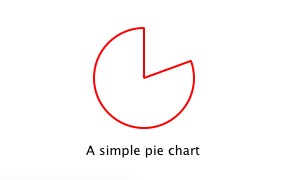
You may see a warning Expression ... depends on non-NOTIFYable properties: PieChart::name. This happens because we add a binding to the writable name property, but haven't yet defined a notify signal for it. The QML engine therefore cannot update the binding if the name value changes. This is addressed in the following chapters.
The source code from the following files are referred to in this chapter:
Chapter 2: Connecting to C++ Methods and Signals▲
extending-qml/chapter2-methods
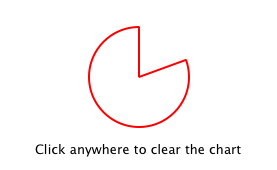
Suppose we want PieChart to have a "clearChart()" method that erases the chart and then emits a "chartCleared" signal. Our app.qml would be able to call clearChart() and receive chartCleared() signals like this:
import Charts 1.0
import QtQuick 2.0

Item {
    width: 300; height: 200

    PieChart {
        id: aPieChart
        anchors.centerIn: parent
        width: 100; height: 100
        color: "red"

        onChartCleared: console.log("The chart has been cleared")
    }

    MouseArea {
        anchors.fill: parent
        onClicked: aPieChart.clearChart()
    }

    Text {
        anchors { bottom: parent.bottom; horizontalCenter: parent.horizontalCenter; bottomMargin: 20 }
        text: "Click anywhere to clear the chart"
    }
}
To do this, we add a clearChart() method and a chartCleared() signal to our C++ class:
class PieChart : public QQuickPaintedItem
{
    ...
public:
    ...
    Q_INVOKABLE void clearChart();

signals:
    void chartCleared();
    ...
};
The use of https:// makes the clearChart() method available to the Qt Meta-Object system, and in turn, to QML. Note that it could have been declared as a Qt slot instead of using https://, as slots are also callable from QML. Both of these approaches are valid.
The clearChart() method simply changes the color to https://, repaints the chart, then emits the chartCleared() signal:
void PieChart::clearChart()
{
    setColor(QColor(Qt::transparent));
    update();

    emit chartCleared();
}
Now when we run the application and click the window, the pie chart disappears, and the application outputs:
qml: The chart has been clearedThe source code from the following files are referred to in this chapter:
Chapter 3: Adding Property Bindings▲
extending-qml/chapter3-bindings
Property binding is a powerful feature of QML that allows values of different types to be synchronized automatically. It uses signals to notify and update other types' values when property values are changed.
Let's enable property bindings for the color property. That means if we have code like this:
import Charts 1.0
import QtQuick 2.0

Item {
    width: 300; height: 200

    Row {
        anchors.centerIn: parent
        spacing: 20

        PieChart {
            id: chartA
            width: 100; height: 100
            color: "red"
        }

        PieChart {
            id: chartB
            width: 100; height: 100
            color: chartA.color
        }
    }

    MouseArea {
        anchors.fill: parent
        onClicked: { chartA.color = "blue" }
    }

    Text {
        anchors { bottom: parent.bottom; horizontalCenter: parent.horizontalCenter; bottomMargin: 20 }
        text: "Click anywhere to change the chart color"
    }
}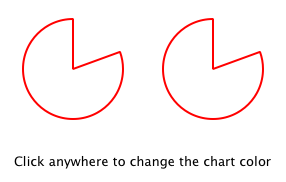
The "color: chartA.color" statement binds the color value of chartB to the color of chartA. Whenever chartA's color value changes, chartB's color value updates to the same value. When the window is clicked, the onClicked handler in the https:// changes the color of chartA, thereby changing both charts to the color blue.
It's easy to enable property binding for the color property. We add a https:// feature to its https://() declaration to indicate that a "colorChanged" signal is emitted whenever the value changes.
class PieChart : public QQuickPaintedItem
{
    ...
    Q_PROPERTY(QColor color READ color WRITE setColor NOTIFY colorChanged)
public:
    ...
signals:
    void colorChanged();
    ...
};
Then, we emit this signal in setPieSlice():
void PieChart::setColor(const QColor &color)
{
    if (color != m_color) {
        m_color = color;
        update();   // repaint with the new color
        emit colorChanged();
    }
}
It's important for setColor() to check that the color value has actually changed before emitting colorChanged(). This ensures the signal is not emitted unnecessarily and also prevents loops when other types respond to the value change.
The use of bindings is essential to QML. You should always add NOTIFY signals for properties if they are able to be implemented, so that your properties can be used in bindings. Properties that cannot be bound cannot be automatically updated and cannot be used as flexibly in QML. Also, since bindings are invoked so often and relied upon in QML usage, users of your custom QML types may see unexpected behavior if bindings are not implemented.
The source code from the following files are referred to in this chapter:
Chapter 4: Using Custom Property Types▲
extending-qml/chapter4-customPropertyTypes
The PieChart type currently has a string-type property and a color-type property. It could have many other types of properties. For example, it could have an int-type property to store an identifier for each chart:
// C++
class PieChart : public QQuickPaintedItem
{
    Q_PROPERTY(int chartId READ chartId WRITE setChartId NOTIFY chartIdChanged)
    ...

public:
    void setChartId(int chartId);
    int chartId() const;
    ...

signals:
    void chartIdChanged();
};

// QML
PieChart {
    ...
    chartId: 100
}
Aside from int, we could use various other property types. Many of the Qt data types such as https://, https:// and https:// are automatically supported from QML. (See https:// documentation for a full list.)
If we want to create a property whose type is not supported by QML by default, we need to register the type with the QML engine.
For example, let's replace the use of the property with a type called "https://" that has a color property. Instead of assigning a color, we assign an PieSlice value which itself contains a color:
import Charts 1.0
import QtQuick 2.0

Item {
    width: 300; height: 200

    PieChart {
        id: chart
        anchors.centerIn: parent
        width: 100; height: 100

        pieSlice: PieSlice {
            anchors.fill: parent
            color: "red"
        }
    }

    Component.onCompleted: console.log("The pie is colored " + chart.pieSlice.color)
}
Like PieChart, this new PieSlice type inherits from https:// and declares its properties with https://():
class PieSlice : public QQuickPaintedItem
{
    Q_OBJECT
    Q_PROPERTY(QColor color READ color WRITE setColor)

public:
    PieSlice(QQuickItem *parent = 0);

    QColor color() const;
    void setColor(const QColor &color);

    void paint(QPainter *painter);

private:
    QColor m_color;
};
To use it in PieChart, we modify the color property declaration and associated method signatures:
class PieChart : public QQuickItem
{
    Q_OBJECT
    Q_PROPERTY(PieSlice* pieSlice READ pieSlice WRITE setPieSlice)
    ...
public:
    ...
    PieSlice *pieSlice() const;
    void setPieSlice(PieSlice *pieSlice);
    ...
};
There is one thing to be aware of when implementing setPieSlice(). The PieSlice is a visual item, so it must be set as a child of the PieChart using https://() so that the PieChart knows to paint this child item when its contents are drawn:
void PieChart::setPieSlice(PieSlice *pieSlice)
{
    m_pieSlice = pieSlice;
    pieSlice->setParentItem(this);
}
Like the PieChart type, the PieSlice type has to be registered using https://() to be used from QML. As with PieChart, we'll add the type to the "Charts" type namespace, version 1.0:
int main(int argc, char *argv[])
{
    ...
    qmlRegisterType<PieSlice>("Charts", 1, 0, "PieSlice");
    ...
}
The source code from the following files are referred to in this chapter:
Chapter 5: Using List Property Types▲
extending-qml/chapter5-listproperties
Right now, a PieChart can only have one PieSlice. Ideally a chart would have multiple slices, with different colors and sizes. To do this, we could have a slices property that accepts a list of PieSlice items:
import Charts 1.0
import QtQuick 2.0

Item {
    width: 300; height: 200

    PieChart {
        anchors.centerIn: parent
        width: 100; height: 100

        slices: [
            PieSlice {
                anchors.fill: parent
                color: "red"
                fromAngle: 0; angleSpan: 110
            },
            PieSlice {
                anchors.fill: parent
                color: "black"
                fromAngle: 110; angleSpan: 50
            },
            PieSlice {
                anchors.fill: parent
                color: "blue"
                fromAngle: 160; angleSpan: 100
            }
        ]
    }
}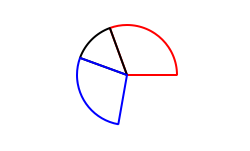
To do this, we replace the pieSlice property in PieChart with a slices property, declared as a https:// type. The https:// class enables the creation of list properties in QML extensions. We replace the pieSlice() function with a slices() function that returns a list of slices, and add an internal append_slice() function (discussed below). We also use a https:// to store the internal list of slices as m_slices:
class PieChart : public QQuickItem
{
    Q_OBJECT
    Q_PROPERTY(QQmlListProperty<PieSlice> slices READ slices)
    ...
public:
    ...
    QQmlListProperty<PieSlice> slices();

private:
    static void append_slice(QQmlListProperty<PieSlice> *list, PieSlice *slice);

    QString m_name;
    QList<PieSlice *> m_slices;
};
Although the slices property does not have an associated WRITE function, it is still modifiable because of the way https:// works. In the PieChart implementation, we implement PieChart::slices() to return a https:// value and indicate that the internal PieChart::append_slice() function is to be called whenever a request is made from QML to add items to the list:
QQmlListProperty<PieSlice> PieChart::slices()
{
    return QQmlListProperty<PieSlice>(this, nullptr, &PieChart::append_slice, nullptr, nullptr, nullptr);
}

void PieChart::append_slice(QQmlListProperty<PieSlice> *list, PieSlice *slice)
{
    PieChart *chart = qobject_cast<PieChart *>(list->object);
    if (chart) {
        slice->setParentItem(chart);
        chart->m_slices.append(slice);
    }
}
The append_slice() function simply sets the parent item as before, and adds the new item to the m_slices list. As you can see, the append function for a https:// is called with two arguments: the list property, and the item that is to be appended.
The PieSlice class has also been modified to include fromAngle and angleSpan properties and to draw the slice according to these values. This is a straightforward modification if you have read the previous pages in this tutorial, so the code is not shown here.
The source code from the following files are referred to in this chapter:
Chapter 6: Writing an Extension Plugin▲
extending-qml/chapter6-plugins
Currently the PieChart and PieSlice types are used by app.qml, which is displayed using a https:// in a C++ application. An alternative way to use our QML extension is to create a plugin library to make it available to the QML engine as a new QML import module. This allows the PieChart and PieSlice types to be registered into a type namespace which can be imported by any QML application, instead of restricting these types to be only used by the one application.
The steps for creating a plugin are described in https://. To start with, we create a plugin class named ChartsPlugin. It subclasses https:// and registers our QML types in the inherited https://() method.
Here is the ChartsPlugin definition in chartsplugin.h:
#include <QQmlExtensionPlugin>

class ChartsPlugin : public QQmlExtensionPlugin
{
    Q_OBJECT
    Q_PLUGIN_METADATA(IID QQmlExtensionInterface_iid)

public:
    void registerTypes(const char *uri);
};
And its implementation in chartsplugin.cpp:
#include "piechart.h"
#include "pieslice.h"
#include <qqml.h>

void ChartsPlugin::registerTypes(const char *uri)
{
    qmlRegisterType<PieChart>(uri, 1, 0, "PieChart");
    qmlRegisterType<PieSlice>(uri, 1, 0, "PieSlice");
}
Then, we write a .pro project file that defines the project as a plugin library and specifies with DESTDIR that library files should be built into a ../Charts directory.
TEMPLATE = lib
CONFIG += plugin
QT += qml quick

DESTDIR = ../Charts
TARGET = $$qtLibraryTarget(chartsplugin)

HEADERS += piechart.h \
           pieslice.h \
           chartsplugin.h

SOURCES += piechart.cpp \
           pieslice.cpp \
           chartsplugin.cpp

DESTPATH=$$[QT_INSTALL_EXAMPLES]/qml/tutorials/extending-qml/chapter6-plugins/Charts

target.path=$$DESTPATH
qmldir.files=$$PWD/qmldir
qmldir.path=$$DESTPATH
INSTALLS += target qmldir

CONFIG += install_ok  # Do not cargo-cult this!

OTHER_FILES += qmldir

# Copy the qmldir file to the same folder as the plugin binary
cpqmldir.files = qmldir
cpqmldir.path = $$DESTDIR
COPIES += cpqmldir
When building this example on Windows or Linux, the Charts directory will be located at the same level as the application that uses our new import module. This way, the QML engine will find our module as the default search path for QML imports includes the directory of the application executable. On macOS, the plugin binary is copied to Contents/PlugIns in the the application bundle; this path is set in chapter6-plugins/app.pro:
osx {
    charts.files = $$OUT_PWD/Charts
    charts.path = Contents/PlugIns
    QMAKE_BUNDLE_DATA += charts
}
To account for this, we also need to add this location as a https:// in main.cpp:
    QQuickView view;
#ifdef Q_OS_OSX
    view.engine()->addImportPath(app.applicationDirPath() + "/../PlugIns");
#endif
    ...
Defining custom import paths is useful also when there are multiple applications using the same QML imports.
The .pro file also contains additional magic to ensure that the https:// is always copied to the same location as the plugin binary.
The qmldir file declares the module name and the plugin that is made available by the module:
module Charts
plugin chartsplugin
Now we have a QML module that can be imported to any application, provided that the QML engine knows where to find it. The example contains an executable that loads app.qml, which uses the import Charts 1.0 statement. Alternatively, you can load the QML file using the https://, setting the import path to the current directory so that it finds the qmldir file:
qmlscene -I . app.qmlThe module "Charts" will be loaded by the QML engine, and the types provided by that module will be available for use in any QML document which imports it.
The source code from the following files are referred to in this chapter:
Chapter 7: Summary▲
In this tutorial, we've shown the basic steps for creating a QML extension:
-
Define new QML types by subclassing https:// and registering them with https://()
-
Add callable methods using https:// or Qt slots, and connect to Qt signals with an onSignal syntax
-
Add property bindings by defining https:// signals
-
Define custom property types if the built-in types are not sufficient
-
Define list property types using https://
-
Create a plugin library by defining a Qt plugin and writing a https:// file
The https:// documentation shows other useful features that can be added to QML extensions. For example, we could use https:// to allow slices to be added without using the slices property:
PieChart {
    PieSlice { ... }
    PieSlice { ... }
    PieSlice { ... }
}
Or randomly add and remove slices from time to time using https://:
PieChart {
    PieSliceRandomizer on slices {}
}
See Also▲
See also https://