


Scene Graph - Painted Item▲
The Painted Item example shows how to use the QML Scene Graph framework to implement custom scenegraph items using https://.
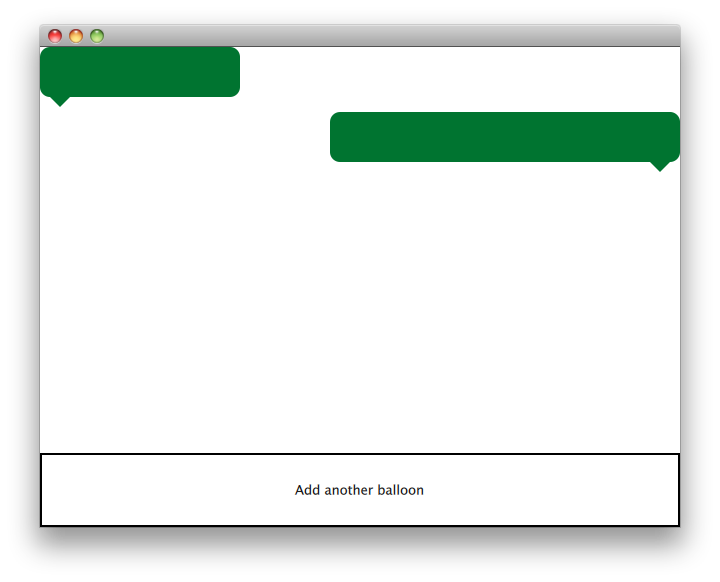
The https:// class is a class derived from https:// for implementing custom QML Scene Graph items using the https:// interfaces.
The example consists of an item class, a plugin class and a QML file to use this plugin. The TextBalloon class represents the individual text balloons extending https://, the TextBalloonPlugin class represents the skeleton code for a https:// plugin and the textballoons.qml file is used to load the plugin and display the text balloons.
We will focus on the TextBalloon class first and continue with the textballoons.qml file. For an example on how to implement a https:// plugin please look at https://
TextBalloon Class Declaration▲
The TextBalloon class inherits from https://. https:// is the base class for all https:// based items in the QML Scene Graph framework.
class TextBalloon : public QQuickPaintedItem
{
    Q_OBJECT
    Q_PROPERTY(bool rightAligned READ isRightAligned WRITE setRightAligned NOTIFY rightAlignedChanged)

    public:
        TextBalloon(QQuickItem *parent = 0);
        void paint(QPainter *painter);

        bool isRightAligned();
        void setRightAligned(bool rightAligned);

    private:
        bool rightAligned;

    signals:
        void rightAlignedChanged();
};
To implement a https:// you must implement QQuickPaintedIem's pure virtual function https://() which implements the painting of the type.
TextBalloon Class Definition▲
We have to be sure to initialize the rightAligned property for a TextBalloon item.
TextBalloon::TextBalloon(QQuickItem *parent)
    : QQuickPaintedItem(parent)
    , rightAligned(false)
{
}
Then we implement the paint() function which is automatically called by the Scene Graph framework to paint the contents of the item. The function paints the item in local coordinates.
void TextBalloon::paint(QPainter *painter)
{
    QBrush brush(QColor("#007430"));

    painter->setBrush(brush);
    painter->setPen(Qt::NoPen);
    painter->setRenderHint(QPainter::Antialiasing);

    QSizeF itemSize = size();
    painter->drawRoundedRect(0, 0, itemSize.width(), itemSize.height() - 10, 10, 10);

    if (rightAligned)
    {
        const QPointF points[3] = {
            QPointF(itemSize.width() - 10.0, itemSize.height() - 10.0),
            QPointF(itemSize.width() - 20.0, itemSize.height()),
            QPointF(itemSize.width() - 30.0, itemSize.height() - 10.0),
        };
        painter->drawConvexPolygon(points, 3);
    }
    else
    {
        const QPointF points[3] = {
            QPointF(10.0, itemSize.height() - 10.0),
            QPointF(20.0, itemSize.height()),
            QPointF(30.0, itemSize.height() - 10.0),
        };
        painter->drawConvexPolygon(points, 3);
    }
}
We start with setting the pen and brush on the item to define the look of the item. After that we start drawing. Note that the https://() item is called to draw depending on the size of the item. The rectangle returned by the https://() function is the size of the item as defined in the QML file.
Textballoons.qml File▲
The Interface consists of two main parts. The scrollable area with the textballoons and the controls button to add new balloons.
BalloonView▲
ListModel {
    id: balloonModel
    ListElement {
        balloonWidth: 200
    }
    ListElement {
        balloonWidth: 120
    }
}

ListView {
    anchors.bottom: controls.top
    anchors.bottomMargin: 2
    anchors.top: parent.top
    id: balloonView
    delegate: TextBalloon {
        anchors.right: index % 2 == 0 ? undefined : parent.right
        height: 60
        rightAligned: index % 2 == 0 ? false : true
        width: balloonWidth
    }
    model: balloonModel
    spacing: 5
    width: parent.width
}
The balloonModel contains two types at application start which will be displayed by the balloonView. The balloonView alernates the TextBalloon delegate items between left-aligned and right-aligned.
Controls▲
Rectangle {
    id: controls

    anchors.bottom: parent.bottom
    anchors.left: parent.left
    anchors.margins: 1
    anchors.right: parent.right
    border.width: 2
    color: "white"
    height: parent.height * 0.15

    Text {
        anchors.centerIn: parent
        text: "Add another balloon"
    }

    MouseArea {
        anchors.fill: parent
        hoverEnabled: true
        onClicked: {
            balloonModel.append({"balloonWidth": Math.floor(Math.random() * 200 + 100)})
            balloonView.positionViewAtIndex(balloonView.count -1, ListView.End)
        }
        onEntered: {
            parent.color = "#8ac953"
        }
        onExited: {
            parent.color = "white"
        }
    }
}
The controls part of the UI contains a rectangle with a https:// which changes color when the mouse hovers over it. This control 'button' adds a new object to the end of the model with a random width.
List of Files▲
Files:
List of Files▲
-
customitems/painteditem/TextBalloonPlugin/plugin.h
-
customitems/painteditem/TextBalloonPlugin/qmldir
-
customitems/painteditem/painteditem.pro
-
customitems/painteditem/painteditem.qrc
-
customitems/painteditem/textballoon.cpp
-
customitems/painteditem/textballoon.h
-
customitems/painteditem/textballoons.qml