


Customizing Qt Quick Controls 2▲
Qt Quick Controls 2 consist of a hierarchy (tree) of items. In order to provide a custom look and feel, the default QML implementation of each item can be replaced with a custom one.
Customizing a Control▲
Sometimes you'll want to create a "one-off" look for a specific part of your UI, and use a complete style everywhere else. Perhaps you're happy with the style you're using, but there's a certain button that has some special significance.
The first way to create this button is to simply define it in-place, wherever it is needed. For example, perhaps you're not satisfied with the default style's Button having square corners. To make them rounded, you can override the https:// item and set the radius property of Rectangle:
import QtQuick 2.12
import QtQuick.Controls 2.12

ApplicationWindow {
    width: 400
    height: 400
    visible: true

    Button {
        id: button
        text: "A Special Button"
        background: Rectangle {
            implicitWidth: 100
            implicitHeight: 40
            color: button.down ? "#d6d6d6" : "#f6f6f6"
            border.color: "#26282a"
            border.width: 1
            radius: 4
        }
    }
}
The second way to create the button is good if you plan to use your rounded button in several places. It involves moving the code into its own QML file within your project.
For this approach, we'll copy the background code from the default style's Button.qml. This file can be found in the following path in your Qt installation:
$QTDIR/qml/QtQuick/Controls.2/Button.qml
After doing that, we'll simply add the following line:
radius: 4To avoid confusion with the controls in the module itself, we'll call the file MyButton.qml. To use the control in your application, refer to it by its filename:
import QtQuick.Controls 2.12

ApplicationWindow {
    MyButton {
        text: qsTr("A Special Button")
    }
}
The third way to create the button is a bit more structured, both in terms of where the file sits in the file system and how it is used in QML. First, copy an existing file as you did above, but this time, put it into a subfolder in your project named (for example) controls. To use the control, first import the folder into a namespace:
import QtQuick.Controls 2.12
import "controls" as MyControls

ApplicationWindow {
    MyControls.Button {
        text: qsTr("A Special Button")
    }
}
As you now have the MyControls namespace, you can name the controls after their actual counterparts in the Qt Quick Controls 2 module. You can repeat this process for any control that you wish to add.
An added benefit of these three methods is that it's not necessary to implement the template from scratch.
Creating a Custom Style▲
There are several ways to go about creating your own styles. Below, we'll explain the various approaches.
Definition of a Style▲
In Qt Quick Controls 2, a style is essentially an interchangeable set of QML files within a single directory. There are three requirements for a style to be https://:
-
At least one QML file whose name matches a control (for example, Button.qml) must exist.
-
Each QML file must contain the relevant type from the https:// import as the root item. For example, Button.qml must contain a Button template as its root item.
If we instead used the corresponding type from the https:// import as we did in the previous section, it would not work: the control we were defining would try to derive from itself.
-
The files must be in a directory in the filesystem or in the https://.
For example, these are all valid paths to a style:
-
./myapp -style /home/absolute/path/to/my/style
-
./myapp -style :/mystyle
-
./myapp -style relative/path/to/my/style
-
./myapp -style MyStyle
The third and fourth paths will be looked up within the QML engine's import path list. This is the same as what happens when you pass Material as the style, for example.
-
By default, the styling system uses the Default style as a fallback for controls that aren't implemented. To customize or extend any other built-in style, it is possible to specify a different fallback style using https://.
What this means is that you can implement as many controls as you like for your custom style, and place them almost anywhere. It also allows users to create their own styles for your application.
Previewing Custom Styles in Qt Quick Designer▲
Using the approach above, it is possible to preview a custom style in Qt Quick Designer. In order to do so, ensure that the project has a https:// file, and that the following entry exists:
[Controls]
Style=MyStyle
For more information, take a look at the https://.
Style-specific C++ Extensions▲
Sometimes you may need to use C++ to extend your custom style. There are two ways to expose such types to QML:
-
If the style that uses the type is the only style used by an application, it's enough to register it with the QML engine via https://():
SélectionnezqmlRegisterType<ACoolCppItem>("MyApp",1,0,"ACoolItem");See https:// for more information about this.
-
If the style that uses the type is one of many styles used by an application, it may be better to only register it when necessary. This is the point at which it would make sense to implement your own https://.
Using a plugin as part of your style is not that much different from using a set of QML files. The only difference is that the plugin and its qmldir file must be present in the same directory as the QML files.
Attached properties▲
It is common for a style to have certain properties or attributes that apply to all controls. https:// are a great way of extending an item in QML without having to modify any existing C++ belonging to that item. For example, both the https:// and https:// styles have an attached theme property that controls whether an item and its children will be rendered in a light or dark theme.
As an example, let's add an attached property that controls elevation. Our style will illustrate the elevation with a drop shadow; the higher the elevation, the larger the shadow.
The first step is to http:// in Qt Creator. After that, we http:// that stores the elevation. Since the type will be used for every control supported by our style, and because we may wish to add other attached properties later on, we'll call it MyStyle. Here is MyStyle.h:
#ifndef MYSTYLE_H
#define MYSTYLE_H

#include <QObject>
#include <QtQml>

class MyStyle : public QObject
{
    Q_OBJECT
    Q_PROPERTY(int elevation READ elevation WRITE setElevation NOTIFY elevationChanged)

public:
    explicit MyStyle(QObject *parent = nullptr);

    static MyStyle *qmlAttachedProperties(QObject *object);

    int elevation() const;
    void setElevation(int elevation);

signals:
    void elevationChanged();

private:
    int m_elevation;
};

QML_DECLARE_TYPEINFO(MyStyle, QML_HAS_ATTACHED_PROPERTIES)

#endif // MYSTYLE_HMyStyle.cpp:
#include "mystyle.h"

MyStyle::MyStyle(QObject *parent) :
    QObject(parent),
    m_elevation(0)
{
}

MyStyle *MyStyle::qmlAttachedProperties(QObject *object)
{
    return new MyStyle(object);
}

int MyStyle::elevation() const
{
    return m_elevation;
}

void MyStyle::setElevation(int elevation)
{
    if (elevation == m_elevation)
        return;

    m_elevation = elevation;
    emit elevationChanged();
}
The MyStyle type is special in the sense that it shouldn't be instantiated, but rather used for its attached properties. For that reason, we register it in the following manner in main.cpp:
#include <QGuiApplication>
#include <QQmlApplicationEngine>

#include "mystyle.h"

int main(int argc, char *argv[])
{
    QCoreApplication::setAttribute(Qt::AA_EnableHighDpiScaling);
    QGuiApplication app(argc, argv);

    qmlRegisterUncreatableType<MyStyle>("MyStyle", 1, 0, "MyStyle", "MyStyle is an attached property");

    QQmlApplicationEngine engine;
    engine.load(QUrl(QLatin1String("qrc:/main.qml")));

    return app.exec();
}
We then copy Button.qml from the Default style in $QTDIR/qml/QtQuick/Controls.2/ into a new myproject folder in our project directory. Add the newly copied Button.qml to qml.qrc, which is the resource file that contains our QML files.
Next, we add a drop shadow to the https:// delegate of the Button:
// ...
import QtGraphicalEffects 1.12
import MyStyle 1.0
// ...

background: Rectangle {
    // ...

    layer.enabled: control.enabled && control.MyStyle.elevation > 0
    layer.effect: DropShadow {
        verticalOffset: 1
        color: control.visualFocus ? "#330066ff" : "#aaaaaa"
        samples: control.MyStyle.elevation
        spread: 0.5
    }
}
Note that we:
-
Don't bother using the drop shadow when the elevation is 0
-
Change the shadow's color depending on whether or not the button has focus
-
Make the size of the shadow depend on the elevation
To try out the attached property, we create a https:// with two Buttons in main.qml:
import QtQuick 2.12
import QtQuick.Controls 2.12

import MyStyle 1.0

ApplicationWindow {
    id: window
    width: 400
    height: 400
    visible: true

    Row {
        spacing: 20
        anchors.centerIn: parent

        Button {
            text: "Button 1"
        }
        Button {
            text: "Button 2"
            MyStyle.elevation: 10
        }
    }
}
One button has no elevation, and the other has an elevation of 10.
With that in place, we can run our example. To tell the application to use our new style, we pass -style :/mystyle as an application argument, but there are https:// to specify the style to use.
The end result:
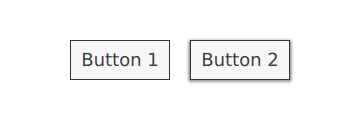
Note that the import MyStyle 1.0 statement is only necessary because we are using the attached property belonging to MyStyle. Both buttons will use our custom style, even if we were to remove the import.
Customization Reference▲
The following snippets present examples where the default style's controls have been customized using the same approach as the https:// section. The code can be used as a starting point to implement a custom look and feel.
Customizing ApplicationWindow▲
https:// consists of one visual item: https://. It is also possible to customize the https:// and https:// items.
import QtQuick 2.12
import QtQuick.Controls 2.12

ApplicationWindow {
    visible: true

    background: Rectangle {
        gradient: Gradient {
            GradientStop { position: 0; color: "#ffffff" }
            GradientStop { position: 1; color: "#c1bbf9" }
        }
    }

    overlay.modal: Rectangle {
        color: "#8f28282a"
    }

    overlay.modeless: Rectangle {
        color: "#2f28282a"
    }
}
Customizing BusyIndicator▲
https:// consists of two visual items: https:// and https://.

import QtQuick 2.12
import QtQuick.Controls 2.12

BusyIndicator {
    id: control

    contentItem: Item {
        implicitWidth: 64
        implicitHeight: 64

        Item {
            id: item
            x: parent.width / 2 - 32
            y: parent.height / 2 - 32
            width: 64
            height: 64
            opacity: control.running ? 1 : 0

            Behavior on opacity {
                OpacityAnimator {
                    duration: 250
                }
            }

            RotationAnimator {
                target: item
                running: control.visible && control.running
                from: 0
                to: 360
                loops: Animation.Infinite
                duration: 1250
            }

            Repeater {
                id: repeater
                model: 6

                Rectangle {
                    x: item.width / 2 - width / 2
                    y: item.height / 2 - height / 2
                    implicitWidth: 10
                    implicitHeight: 10
                    radius: 5
                    color: "#21be2b"
                    transform: [
                        Translate {
                            y: -Math.min(item.width, item.height) * 0.5 + 5
                        },
                        Rotation {
                            angle: index / repeater.count * 360
                            origin.x: 5
                            origin.y: 5
                        }
                    ]
                }
            }
        }
    }
}
Customizing Button▲
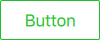
import QtQuick 2.12
import QtQuick.Controls 2.12

Button {
    id: control
    text: qsTr("Button")

    contentItem: Text {
        text: control.text
        font: control.font
        opacity: enabled ? 1.0 : 0.3
        color: control.down ? "#17a81a" : "#21be2b"
        horizontalAlignment: Text.AlignHCenter
        verticalAlignment: Text.AlignVCenter
        elide: Text.ElideRight
    }

    background: Rectangle {
        implicitWidth: 100
        implicitHeight: 40
        opacity: enabled ? 1 : 0.3
        border.color: control.down ? "#17a81a" : "#21be2b"
        border.width: 1
        radius: 2
    }
}
Customizing CheckBox▲
https:// consists of three visual items: https://, https:// and https://.

import QtQuick 2.12
import QtQuick.Controls 2.12

CheckBox {
    id: control
    text: qsTr("CheckBox")
    checked: true

    indicator: Rectangle {
        implicitWidth: 26
        implicitHeight: 26
        x: control.leftPadding
        y: parent.height / 2 - height / 2
        radius: 3
        border.color: control.down ? "#17a81a" : "#21be2b"

        Rectangle {
            width: 14
            height: 14
            x: 6
            y: 6
            radius: 2
            color: control.down ? "#17a81a" : "#21be2b"
            visible: control.checked
        }
    }

    contentItem: Text {
        text: control.text
        font: control.font
        opacity: enabled ? 1.0 : 0.3
        color: control.down ? "#17a81a" : "#21be2b"
        verticalAlignment: Text.AlignVCenter
        leftPadding: control.indicator.width + control.spacing
    }
}
Customizing CheckDelegate▲
https:// consists of three visual items: https://, https:// and https://.
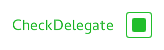
import QtQuick 2.12
import QtQuick.Controls 2.12

CheckDelegate {
    id: control
    text: qsTr("CheckDelegate")
    checked: true

    contentItem: Text {
        rightPadding: control.indicator.width + control.spacing
        text: control.text
        font: control.font
        opacity: enabled ? 1.0 : 0.3
        color: control.down ? "#17a81a" : "#21be2b"
        elide: Text.ElideRight
        verticalAlignment: Text.AlignVCenter
    }

    indicator: Rectangle {
        implicitWidth: 26
        implicitHeight: 26
        x: control.width - width - control.rightPadding
        y: control.topPadding + control.availableHeight / 2 - height / 2
        radius: 3
        color: "transparent"
        border.color: control.down ? "#17a81a" : "#21be2b"

        Rectangle {
            width: 14
            height: 14
            x: 6
            y: 6
            radius: 2
            color: control.down ? "#17a81a" : "#21be2b"
            visible: control.checked
        }
    }

    background: Rectangle {
        implicitWidth: 100
        implicitHeight: 40
        visible: control.down || control.highlighted
        color: control.down ? "#bdbebf" : "#eeeeee"
    }
}
Customizing ComboBox▲
https:// consists of https://, https://, https://, https://, and https://.
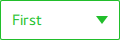
import QtQuick 2.12
import QtQuick.Controls 2.12

ComboBox {
    id: control
    model: ["First", "Second", "Third"]

    delegate: ItemDelegate {
        width: control.width
        contentItem: Text {
            text: modelData
            color: "#21be2b"
            font: control.font
            elide: Text.ElideRight
            verticalAlignment: Text.AlignVCenter
        }
        highlighted: control.highlightedIndex === index
    }

    indicator: Canvas {
        id: canvas
        x: control.width - width - control.rightPadding
        y: control.topPadding + (control.availableHeight - height) / 2
        width: 12
        height: 8
        contextType: "2d"

        Connections {
            target: control
            onPressedChanged: canvas.requestPaint()
        }

        onPaint: {
            context.reset();
            context.moveTo(0, 0);
            context.lineTo(width, 0);
            context.lineTo(width / 2, height);
            context.closePath();
            context.fillStyle = control.pressed ? "#17a81a" : "#21be2b";
            context.fill();
        }
    }

    contentItem: Text {
        leftPadding: 0
        rightPadding: control.indicator.width + control.spacing

        text: control.displayText
        font: control.font
        color: control.pressed ? "#17a81a" : "#21be2b"
        verticalAlignment: Text.AlignVCenter
        elide: Text.ElideRight
    }

    background: Rectangle {
        implicitWidth: 120
        implicitHeight: 40
        border.color: control.pressed ? "#17a81a" : "#21be2b"
        border.width: control.visualFocus ? 2 : 1
        radius: 2
    }

    popup: Popup {
        y: control.height - 1
        width: control.width
        implicitHeight: contentItem.implicitHeight
        padding: 1

        contentItem: ListView {
            clip: true
            implicitHeight: contentHeight
            model: control.popup.visible ? control.delegateModel : null
            currentIndex: control.highlightedIndex

            ScrollIndicator.vertical: ScrollIndicator { }
        }

        background: Rectangle {
            border.color: "#21be2b"
            radius: 2
        }
    }
}
Customizing DelayButton▲
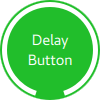
import QtQuick 2.12
import QtQuick.Controls 2.12

DelayButton {
    id: control
    checked: true
    text: qsTr("Delay\nButton")

    contentItem: Text {
        text: control.text
        font: control.font
        opacity: enabled ? 1.0 : 0.3
        color: "white"
        horizontalAlignment: Text.AlignHCenter
        verticalAlignment: Text.AlignVCenter
        elide: Text.ElideRight
    }

    background: Rectangle {
        implicitWidth: 100
        implicitHeight: 100
        opacity: enabled ? 1 : 0.3
        color: control.down ? "#17a81a" : "#21be2b"
        radius: size / 2

        readonly property real size: Math.min(control.width, control.height)
        width: size
        height: size
        anchors.centerIn: parent

        Canvas {
            id: canvas
            anchors.fill: parent

            Connections {
                target: control
                onProgressChanged: canvas.requestPaint()
            }

            onPaint: {
                var ctx = getContext("2d")
                ctx.clearRect(0, 0, width, height)
                ctx.strokeStyle = "white"
                ctx.lineWidth = parent.size / 20
                ctx.beginPath()
                var startAngle = Math.PI / 5 * 3
                var endAngle = startAngle + control.progress * Math.PI / 5 * 9
                ctx.arc(width / 2, height / 2, width / 2 - ctx.lineWidth / 2 - 2, startAngle, endAngle)
                ctx.stroke()
            }
        }
    }
}
Customizing Dial▲
Dial consists of two visual items: https:// and https://.
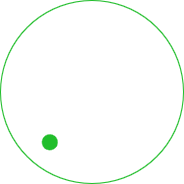
import QtQuick 2.12
import QtQuick.Controls 2.12

Dial {
    id: control
    background: Rectangle {
        x: control.width / 2 - width / 2
        y: control.height / 2 - height / 2
        width: Math.max(64, Math.min(control.width, control.height))
        height: width
        color: "transparent"
        radius: width / 2
        border.color: control.pressed ? "#17a81a" : "#21be2b"
        opacity: control.enabled ? 1 : 0.3
    }

    handle: Rectangle {
        id: handleItem
        x: control.background.x + control.background.width / 2 - width / 2
        y: control.background.y + control.background.height / 2 - height / 2
        width: 16
        height: 16
        color: control.pressed ? "#17a81a" : "#21be2b"
        radius: 8
        antialiasing: true
        opacity: control.enabled ? 1 : 0.3
        transform: [
            Translate {
                y: -Math.min(control.background.width, control.background.height) * 0.4 + handleItem.height / 2
            },
            Rotation {
                angle: control.angle
                origin.x: handleItem.width / 2
                origin.y: handleItem.height / 2
            }
        ]
    }
}
Customizing Drawer▲
Drawer can have a visual https:// item.
background: Rectangle {
    Rectangle {
        x: parent.width - 1
        width: 1
        height: parent.height
        color: "#21be2b"
    }
}
Customizing Frame▲
Frame consists of one visual item: https://.

import QtQuick 2.12
import QtQuick.Controls 2.12

Frame {
    background: Rectangle {
        color: "transparent"
        border.color: "#21be2b"
        radius: 2
    }

    Label {
        text: qsTr("Content goes here!")
    }
}
Customizing GroupBox▲
https:// consists of two visual items: https:// and https://.
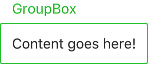
import QtQuick 2.12
import QtQuick.Controls 2.12

GroupBox {
    id: control
    title: qsTr("GroupBox")

    background: Rectangle {
        y: control.topPadding - control.bottomPadding
        width: parent.width
        height: parent.height - control.topPadding + control.bottomPadding
        color: "transparent"
        border.color: "#21be2b"
        radius: 2
    }

    label: Label {
        x: control.leftPadding
        width: control.availableWidth
        text: control.title
        color: "#21be2b"
        elide: Text.ElideRight
    }

    Label {
        text: qsTr("Content goes here!")
    }
}
Customizing ItemDelegate▲
https:// consists of two visual items: https:// and https://.
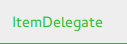
import QtQuick 2.12
import QtQuick.Controls 2.12

ItemDelegate {
    id: control
    text: qsTr("ItemDelegate")

    contentItem: Text {
        rightPadding: control.spacing
        text: control.text
        font: control.font
        color: control.enabled ? (control.down ? "#17a81a" : "#21be2b") : "#bdbebf"
        elide: Text.ElideRight
        verticalAlignment: Text.AlignVCenter
    }

    background: Rectangle {
        implicitWidth: 100
        implicitHeight: 40
        opacity: enabled ? 1 : 0.3
        color: control.down ? "#dddedf" : "#eeeeee"

        Rectangle {
            width: parent.width
            height: 1
            color: control.down ? "#17a81a" : "#21be2b"
            anchors.bottom: parent.bottom
        }
    }
}
Customizing Label▲
Label can have a visual https:// item.

import QtQuick 2.12
import QtQuick.Controls 2.12

Label {
    text: qsTr("Label")
    color: "#21be2b"
}
Customizing Menu▲
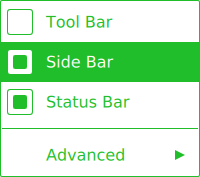
import QtQuick 2.12
import QtQuick.Controls 2.12

Menu {
    id: menu

    Action { text: qsTr("Tool Bar"); checkable: true }
    Action { text: qsTr("Side Bar"); checkable: true; checked: true }
    Action { text: qsTr("Status Bar"); checkable: true; checked: true }

    MenuSeparator {
        contentItem: Rectangle {
            implicitWidth: 200
            implicitHeight: 1
            color: "#21be2b"
        }
    }

    Menu {
        title: qsTr("Advanced")
        // ...
    }

    topPadding: 2
    bottomPadding: 2

    delegate: MenuItem {
        id: menuItem
        implicitWidth: 200
        implicitHeight: 40

        arrow: Canvas {
            x: parent.width - width
            implicitWidth: 40
            implicitHeight: 40
            visible: menuItem.subMenu
            onPaint: {
                var ctx = getContext("2d")
                ctx.fillStyle = menuItem.highlighted ? "#ffffff" : "#21be2b"
                ctx.moveTo(15, 15)
                ctx.lineTo(width - 15, height / 2)
                ctx.lineTo(15, height - 15)
                ctx.closePath()
                ctx.fill()
            }
        }

        indicator: Item {
            implicitWidth: 40
            implicitHeight: 40
            Rectangle {
                width: 26
                height: 26
                anchors.centerIn: parent
                visible: menuItem.checkable
                border.color: "#21be2b"
                radius: 3
                Rectangle {
                    width: 14
                    height: 14
                    anchors.centerIn: parent
                    visible: menuItem.checked
                    color: "#21be2b"
                    radius: 2
                }
            }
        }

        contentItem: Text {
            leftPadding: menuItem.indicator.width
            rightPadding: menuItem.arrow.width
            text: menuItem.text
            font: menuItem.font
            opacity: enabled ? 1.0 : 0.3
            color: menuItem.highlighted ? "#ffffff" : "#21be2b"
            horizontalAlignment: Text.AlignLeft
            verticalAlignment: Text.AlignVCenter
            elide: Text.ElideRight
        }

        background: Rectangle {
            implicitWidth: 200
            implicitHeight: 40
            opacity: enabled ? 1 : 0.3
            color: menuItem.highlighted ? "#21be2b" : "transparent"
        }
    }

    background: Rectangle {
        implicitWidth: 200
        implicitHeight: 40
        color: "#ffffff"
        border.color: "#21be2b"
        radius: 2
    }
}
Customizing MenuBar▲

import QtQuick 2.12
import QtQuick.Controls 2.12

MenuBar {
    id: menuBar

    Menu { title: qsTr("File") }
    Menu { title: qsTr("Edit") }
    Menu { title: qsTr("View") }
    Menu { title: qsTr("Help") }

    delegate: MenuBarItem {
        id: menuBarItem

        contentItem: Text {
            text: menuBarItem.text
            font: menuBarItem.font
            opacity: enabled ? 1.0 : 0.3
            color: menuBarItem.highlighted ? "#ffffff" : "#21be2b"
            horizontalAlignment: Text.AlignLeft
            verticalAlignment: Text.AlignVCenter
            elide: Text.ElideRight
        }

        background: Rectangle {
            implicitWidth: 40
            implicitHeight: 40
            opacity: enabled ? 1 : 0.3
            color: menuBarItem.highlighted ? "#21be2b" : "transparent"
        }
    }

    background: Rectangle {
        implicitWidth: 40
        implicitHeight: 40
        color: "#ffffff"

        Rectangle {
            color: "#21be2b"
            width: parent.width
            height: 1
            anchors.bottom: parent.bottom
        }
    }
}
Customizing PageIndicator▲
https:// consists of a https://, https://, and https://.

import QtQuick 2.12
import QtQuick.Controls 2.12

PageIndicator {
    id: control
    count: 5
    currentIndex: 2

    delegate: Rectangle {
        implicitWidth: 8
        implicitHeight: 8

        radius: width / 2
        color: "#21be2b"

        opacity: index === control.currentIndex ? 0.95 : pressed ? 0.7 : 0.45

        Behavior on opacity {
            OpacityAnimator {
                duration: 100
            }
        }
    }
}
Customizing Pane▲
Pane consists of a https://.
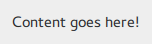
import QtQuick 2.12
import QtQuick.Controls 2.12

Pane {
    background: Rectangle {
        color: "#eeeeee"
    }

    Label {
        text: qsTr("Content goes here!")
    }
}
Customizing Popup▲
Popup consists of a https:// and https://.

import QtQuick 2.12
import QtQuick.Controls 2.12

Popup {
    id: popup
    background: Rectangle {
        implicitWidth: 200
        implicitHeight: 200
        border.color: "#444"
    }
    contentItem: Column {}
}
Customizing ProgressBar▲
https:// consists of two visual items: https:// and https://.

import QtQuick 2.12
import QtQuick.Controls 2.12

ProgressBar {
    id: control
    value: 0.5
    padding: 2

    background: Rectangle {
        implicitWidth: 200
        implicitHeight: 6
        color: "#e6e6e6"
        radius: 3
    }

    contentItem: Item {
        implicitWidth: 200
        implicitHeight: 4

        Rectangle {
            width: control.visualPosition * parent.width
            height: parent.height
            radius: 2
            color: "#17a81a"
        }
    }
}
Customizing RadioButton▲

import QtQuick 2.12
import QtQuick.Controls 2.12

RadioButton {
    id: control
    text: qsTr("RadioButton")
    checked: true

    indicator: Rectangle {
        implicitWidth: 26
        implicitHeight: 26
        x: control.leftPadding
        y: parent.height / 2 - height / 2
        radius: 13
        border.color: control.down ? "#17a81a" : "#21be2b"

        Rectangle {
            width: 14
            height: 14
            x: 6
            y: 6
            radius: 7
            color: control.down ? "#17a81a" : "#21be2b"
            visible: control.checked
        }
    }

    contentItem: Text {
        text: control.text
        font: control.font
        opacity: enabled ? 1.0 : 0.3
        color: control.down ? "#17a81a" : "#21be2b"
        verticalAlignment: Text.AlignVCenter
        leftPadding: control.indicator.width + control.spacing
    }
}
Customizing RadioDelegate▲
https:// consists of three visual items: https://, https:// and https://.

import QtQuick 2.12
import QtQuick.Controls 2.12

RadioDelegate {
    id: control
    text: qsTr("RadioDelegate")
    checked: true

    contentItem: Text {
        rightPadding: control.indicator.width + control.spacing
        text: control.text
        font: control.font
        opacity: enabled ? 1.0 : 0.3
        color: control.down ? "#17a81a" : "#21be2b"
        elide: Text.ElideRight
        verticalAlignment: Text.AlignVCenter
    }

    indicator: Rectangle {
        implicitWidth: 26
        implicitHeight: 26
        x: control.width - width - control.rightPadding
        y: parent.height / 2 - height / 2
        radius: 13
        color: "transparent"
        border.color: control.down ? "#17a81a" : "#21be2b"

        Rectangle {
            width: 14
            height: 14
            x: 6
            y: 6
            radius: 7
            color: control.down ? "#17a81a" : "#21be2b"
            visible: control.checked
        }
    }

    background: Rectangle {
        implicitWidth: 100
        implicitHeight: 40
        visible: control.down || control.highlighted
        color: control.down ? "#bdbebf" : "#eeeeee"
    }
}
Customizing RangeSlider▲
https:// consists of three visual items: https://, https:// and https://.

import QtQuick 2.12
import QtQuick.Controls 2.12

RangeSlider {
    id: control
    first.value: 0.25
    second.value: 0.75

    background: Rectangle {
        x: control.leftPadding
        y: control.topPadding + control.availableHeight / 2 - height / 2
        implicitWidth: 200
        implicitHeight: 4
        width: control.availableWidth
        height: implicitHeight
        radius: 2
        color: "#bdbebf"

        Rectangle {
            x: control.first.visualPosition * parent.width
            width: control.second.visualPosition * parent.width - x
            height: parent.height
            color: "#21be2b"
            radius: 2
        }
    }

    first.handle: Rectangle {
        x: control.leftPadding + first.visualPosition * (control.availableWidth - width)
        y: control.topPadding + control.availableHeight / 2 - height / 2
        implicitWidth: 26
        implicitHeight: 26
        radius: 13
        color: first.pressed ? "#f0f0f0" : "#f6f6f6"
        border.color: "#bdbebf"
    }

    second.handle: Rectangle {
        x: control.leftPadding + second.visualPosition * (control.availableWidth - width)
        y: control.topPadding + control.availableHeight / 2 - height / 2
        implicitWidth: 26
        implicitHeight: 26
        radius: 13
        color: second.pressed ? "#f0f0f0" : "#f6f6f6"
        border.color: "#bdbebf"
    }
}
Customizing RoundButton▲
Customizing ScrollBar▲
https:// consists of two visual items: https:// and https://.

import QtQuick 2.12
import QtQuick.Controls 2.12

ScrollBar {
    id: control
    size: 0.3
    position: 0.2
    active: true
    orientation: Qt.Vertical

    contentItem: Rectangle {
        implicitWidth: 6
        implicitHeight: 100
        radius: width / 2
        color: control.pressed ? "#81e889" : "#c2f4c6"
    }
}
Customizing ScrollIndicator▲
https:// consists of two visual items: https:// and https://.

import QtQuick 2.12
import QtQuick.Controls 2.12

ScrollIndicator {
    id: control
    size: 0.3
    position: 0.2
    active: true
    orientation: Qt.Vertical

    contentItem: Rectangle {
        implicitWidth: 2
        implicitHeight: 100
        color: "#c2f4c6"
    }
}
Customizing ScrollView▲
https:// consists of a https:// item, and horizontal and vertical scroll bars.
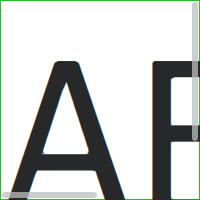
ScrollView {
    id: control

    width: 200
    height: 200
    focus: true

    Label {
        text: "ABC"
        font.pixelSize: 224
    }

    ScrollBar.vertical: ScrollBar {
        parent: control
        x: control.mirrored ? 0 : control.width - width
        y: control.topPadding
        height: control.availableHeight
        active: control.ScrollBar.horizontal.active
    }

    ScrollBar.horizontal: ScrollBar {
        parent: control
        x: control.leftPadding
        y: control.height - height
        width: control.availableWidth
        active: control.ScrollBar.vertical.active
    }

    background: Rectangle {
        border.color: control.activeFocus ? "#21be2b" : "#bdbebf"
    }
}
Customizing Slider▲
Slider consists of two visual items: https://, and https://.

import QtQuick 2.12
import QtQuick.Controls 2.12

Slider {
    id: control
    value: 0.5

    background: Rectangle {
        x: control.leftPadding
        y: control.topPadding + control.availableHeight / 2 - height / 2
        implicitWidth: 200
        implicitHeight: 4
        width: control.availableWidth
        height: implicitHeight
        radius: 2
        color: "#bdbebf"

        Rectangle {
            width: control.visualPosition * parent.width
            height: parent.height
            color: "#21be2b"
            radius: 2
        }
    }

    handle: Rectangle {
        x: control.leftPadding + control.visualPosition * (control.availableWidth - width)
        y: control.topPadding + control.availableHeight / 2 - height / 2
        implicitWidth: 26
        implicitHeight: 26
        radius: 13
        color: control.pressed ? "#f0f0f0" : "#f6f6f6"
        border.color: "#bdbebf"
    }
}
Customizing SpinBox▲
https:// consists of four visual items: https://, https://, https://, and https://.
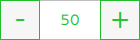
import QtQuick 2.12
import QtQuick.Controls 2.12

SpinBox {
    id: control
    value: 50
    editable: true

    contentItem: TextInput {
        z: 2
        text: control.textFromValue(control.value, control.locale)

        font: control.font
        color: "#21be2b"
        selectionColor: "#21be2b"
        selectedTextColor: "#ffffff"
        horizontalAlignment: Qt.AlignHCenter
        verticalAlignment: Qt.AlignVCenter

        readOnly: !control.editable
        validator: control.validator
        inputMethodHints: Qt.ImhFormattedNumbersOnly
    }

    up.indicator: Rectangle {
        x: control.mirrored ? 0 : parent.width - width
        height: parent.height
        implicitWidth: 40
        implicitHeight: 40
        color: control.up.pressed ? "#e4e4e4" : "#f6f6f6"
        border.color: enabled ? "#21be2b" : "#bdbebf"

        Text {
            text: "+"
            font.pixelSize: control.font.pixelSize * 2
            color: "#21be2b"
            anchors.fill: parent
            fontSizeMode: Text.Fit
            horizontalAlignment: Text.AlignHCenter
            verticalAlignment: Text.AlignVCenter
        }
    }

    down.indicator: Rectangle {
        x: control.mirrored ? parent.width - width : 0
        height: parent.height
        implicitWidth: 40
        implicitHeight: 40
        color: control.down.pressed ? "#e4e4e4" : "#f6f6f6"
        border.color: enabled ? "#21be2b" : "#bdbebf"

        Text {
            text: "-"
            font.pixelSize: control.font.pixelSize * 2
            color: "#21be2b"
            anchors.fill: parent
            fontSizeMode: Text.Fit
            horizontalAlignment: Text.AlignHCenter
            verticalAlignment: Text.AlignVCenter
        }
    }

    background: Rectangle {
        implicitWidth: 140
        border.color: "#bdbebf"
    }
}
Customizing StackView▲
https:// can have a visual https:// item, and it allows customizing the transitions that are used for push, pop, and replace operations.
import QtQuick 2.12
import QtQuick.Controls 2.12

StackView {
    id: control

    popEnter: Transition {
        XAnimator {
            from: (control.mirrored ? -1 : 1) * -control.width
            to: 0
            duration: 400
            easing.type: Easing.OutCubic
        }
    }

    popExit: Transition {
        XAnimator {
            from: 0
            to: (control.mirrored ? -1 : 1) * control.width
            duration: 400
            easing.type: Easing.OutCubic
        }
    }
}
Customizing SwipeDelegate▲
https:// consists of six visual items: https://, https://, https://, swipe.left, swipe.right, and swipe.behind.
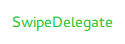
import QtQuick 2.12
import QtQuick.Controls 2.12

SwipeDelegate {
    id: control
    text: qsTr("SwipeDelegate")

    Component {
        id: component

        Rectangle {
            color: SwipeDelegate.pressed ? "#333" : "#444"
            width: parent.width
            height: parent.height
            clip: true

            Label {
                text: qsTr("Press me!")
                color: "#21be2b"
                anchors.centerIn: parent
            }
        }
    }

    swipe.left: component
    swipe.right: component

    contentItem: Text {
        text: control.text
        font: control.font
        color: control.enabled ? (control.down ? "#17a81a" : "#21be2b") : "#bdbebf"
        elide: Text.ElideRight
        verticalAlignment: Text.AlignVCenter

        Behavior on x {
            enabled: !control.down
            NumberAnimation {
                easing.type: Easing.InOutCubic
                duration: 400
            }
        }
    }
}
Customizing SwipeView▲
https:// can have a visual https:// item. The navigation is implemented by the https://.
import QtQuick 2.12
import QtQuick.Controls 2.12

SwipeView {
    id: control

    background: Rectangle {
        color: "#eeeeee"
    }
}
Customizing Switch▲
Switch consists of three visual items: https://, https:// and https://.

import QtQuick 2.12
import QtQuick.Controls 2.12

Switch {
    id: control
    text: qsTr("Switch")

    indicator: Rectangle {
        implicitWidth: 48
        implicitHeight: 26
        x: control.leftPadding
        y: parent.height / 2 - height / 2
        radius: 13
        color: control.checked ? "#17a81a" : "#ffffff"
        border.color: control.checked ? "#17a81a" : "#cccccc"

        Rectangle {
            x: control.checked ? parent.width - width : 0
            width: 26
            height: 26
            radius: 13
            color: control.down ? "#cccccc" : "#ffffff"
            border.color: control.checked ? (control.down ? "#17a81a" : "#21be2b") : "#999999"
        }
    }

    contentItem: Text {
        text: control.text
        font: control.font
        opacity: enabled ? 1.0 : 0.3
        color: control.down ? "#17a81a" : "#21be2b"
        verticalAlignment: Text.AlignVCenter
        leftPadding: control.indicator.width + control.spacing
    }
}
Customizing SwitchDelegate▲
https:// consists of three visual items: https://, https:// and https://.
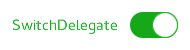
import QtQuick 2.12
import QtQuick.Controls 2.12

SwitchDelegate {
    id: control
    text: qsTr("SwitchDelegate")
    checked: true

    contentItem: Text {
        rightPadding: control.indicator.width + control.spacing
        text: control.text
        font: control.font
        opacity: enabled ? 1.0 : 0.3
        color: control.down ? "#17a81a" : "#21be2b"
        elide: Text.ElideRight
        verticalAlignment: Text.AlignVCenter
    }

    indicator: Rectangle {
        implicitWidth: 48
        implicitHeight: 26
        x: control.width - width - control.rightPadding
        y: parent.height / 2 - height / 2
        radius: 13
        color: control.checked ? "#17a81a" : "transparent"
        border.color: control.checked ? "#17a81a" : "#cccccc"

        Rectangle {
            x: control.checked ? parent.width - width : 0
            width: 26
            height: 26
            radius: 13
            color: control.down ? "#cccccc" : "#ffffff"
            border.color: control.checked ? (control.down ? "#17a81a" : "#21be2b") : "#999999"
        }
    }

    background: Rectangle {
        implicitWidth: 100
        implicitHeight: 40
        visible: control.down || control.highlighted
        color: control.down ? "#bdbebf" : "#eeeeee"
    }
}
Customizing TabBar▲
https:// consists of two visual items: https://, and https://.

import QtQuick 2.12
import QtQuick.Controls 2.12

TabBar {
    id: control

    background: Rectangle {
        color: "#eeeeee"
    }

    TabButton {
        text: qsTr("Home")
    }
    TabButton {
        text: qsTr("Discover")
    }
    TabButton {
        text: qsTr("Activity")
    }
}
Customizing TabButton▲
Customizing TextArea▲
https:// consists of a https:// item.
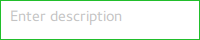
import QtQuick 2.12
import QtQuick.Controls 2.12

TextArea {
    id: control
    placeholderText: qsTr("Enter description")

    background: Rectangle {
        implicitWidth: 200
        implicitHeight: 40
        border.color: control.enabled ? "#21be2b" : "transparent"
    }
}
Customizing TextField▲
https:// consists of a https:// item.
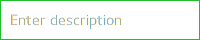
import QtQuick 2.12
import QtQuick.Controls 2.12

TextField {
    id: control
    placeholderText: qsTr("Enter description")

    background: Rectangle {
        implicitWidth: 200
        implicitHeight: 40
        color: control.enabled ? "transparent" : "#353637"
        border.color: control.enabled ? "#21be2b" : "transparent"
    }
}
Customizing ToolBar▲
https:// consists of one visual item: https://.

ToolBar {
    id: control

    background: Rectangle {
        implicitHeight: 40
        color: "#eeeeee"

        Rectangle {
            width: parent.width
            height: 1
            anchors.bottom: parent.bottom
            color: "transparent"
            border.color: "#21be2b"
        }
    }

    RowLayout {
        anchors.fill: parent
        ToolButton {
            text: qsTr("Undo")
        }
        ToolButton {
            text: qsTr("Redo")
        }
    }
}
Customizing ToolButton▲
import QtQuick 2.12
import QtQuick.Controls 2.12

ToolButton {
    id: control
    text: qsTr("ToolButton")
    width: 120

    contentItem: Text {
        text: control.text
        font: control.font
        opacity: enabled ? 1.0 : 0.3
        color: control.down ? "#17a81a" : "#21be2b"
        horizontalAlignment: Text.AlignHCenter
        verticalAlignment: Text.AlignVCenter
        elide: Text.ElideRight
    }

    background: Rectangle {
        implicitWidth: 40
        implicitHeight: 40
        color: Qt.darker("#33333333", control.enabled && (control.checked || control.highlighted) ? 1.5 : 1.0)
        opacity: enabled ? 1 : 0.3
        visible: control.down || (control.enabled && (control.checked || control.highlighted))
    }
}
Customizing ToolSeparator▲
https:// consists of two visual items: https:// and https://.

ToolBar {
    RowLayout {
        anchors.fill: parent

        ToolButton {
            text: qsTr("Action 1")
        }
        ToolButton {
            text: qsTr("Action 2")
        }

        ToolSeparator {
            padding: vertical ? 10 : 2
            topPadding: vertical ? 2 : 10
            bottomPadding: vertical ? 2 : 10

            contentItem: Rectangle {
                implicitWidth: parent.vertical ? 1 : 24
                implicitHeight: parent.vertical ? 24 : 1
                color: "#c3c3c3"
            }
        }

        ToolButton {
            text: qsTr("Action 3")
        }
        ToolButton {
            text: qsTr("Action 4")
        }

        Item {
            Layout.fillWidth: true
        }
    }
}
Customizing ToolTip▲
https:// consists of two visual items: https:// and https://.
import QtQuick 2.12
import QtQuick.Controls 2.12

ToolTip {
    id: control
    text: qsTr("A descriptive tool tip of what the button does")

    contentItem: Text {
        text: control.text
        font: control.font
        color: "#21be2b"
    }

    background: Rectangle {
        border.color: "#21be2b"
    }
}
Customizing Tumbler▲
Tumbler consists of three visual items: https://, https://, and https://.

import QtQuick 2.12
import QtQuick.Controls 2.12

Tumbler {
    id: control
    model: 15

    background: Item {
        Rectangle {
            opacity: control.enabled ? 0.2 : 0.1
            border.color: "#000000"
            width: parent.width
            height: 1
            anchors.top: parent.top
        }

        Rectangle {
            opacity: control.enabled ? 0.2 : 0.1
            border.color: "#000000"
            width: parent.width
            height: 1
            anchors.bottom: parent.bottom
        }
    }

    delegate: Text {
        text: qsTr("Item %1").arg(modelData + 1)
        font: control.font
        horizontalAlignment: Text.AlignHCenter
        verticalAlignment: Text.AlignVCenter
        opacity: 1.0 - Math.abs(Tumbler.displacement) / (control.visibleItemCount / 2)
    }

    Rectangle {
        anchors.horizontalCenter: control.horizontalCenter
        y: control.height * 0.4
        width: 40
        height: 1
        color: "#21be2b"
    }

    Rectangle {
        anchors.horizontalCenter: control.horizontalCenter
        y: control.height * 0.6
        width: 40
        height: 1
        color: "#21be2b"
    }
}
If you want to define your own contentItem, use either a https:// or https:// as the root item. For a wrapping Tumbler, use https://:
Tumbler {
    id: tumbler

    contentItem: PathView {
        id: pathView
        model: tumbler.model
        delegate: tumbler.delegate
        clip: true
        pathItemCount: tumbler.visibleItemCount + 1
        preferredHighlightBegin: 0.5
        preferredHighlightEnd: 0.5
        dragMargin: width / 2

        path: Path {
            startX: pathView.width / 2
            startY: -pathView.delegateHeight / 2
            PathLine {
                x: pathView.width / 2
                y: pathView.pathItemCount * pathView.delegateHeight - pathView.delegateHeight / 2
            }
        }

        property real delegateHeight: tumbler.availableHeight / tumbler.visibleItemCount
    }
}
For a non-wrapping Tumbler, use https://:
Tumbler {
    id: tumbler

    contentItem: ListView {
        model: tumbler.model
        delegate: tumbler.delegate

        snapMode: ListView.SnapToItem
        highlightRangeMode: ListView.StrictlyEnforceRange
        preferredHighlightBegin: height / 2 - (height / tumbler.visibleItemCount / 2)
        preferredHighlightEnd: height / 2 + (height / tumbler.visibleItemCount / 2)
        clip: true
    }
}