


Qt Sensors - QML example▲
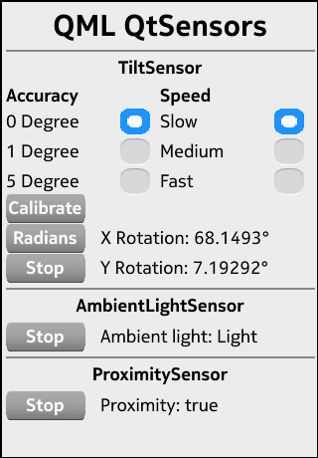
Qt Sensors in QML▲
To write a QML application that will use the QML sensors types in the https:// 5 import you need to to the following steps:
Import the https:// 5.x declarative plugin:
import QtSensors 5.0Add the Sensor QML types into your qml file.
In this example we use the https://:
TiltSensor {
    id: tilt
    active: false
}
The Tilt-, AmbientLight- and the Proximity QML sensor types have the 'enabled' property in common. To start or stop the sensor set this property to true or false.
tilt.active = (tiltStart.text === "Start");Reading the data can be done for each sensor type like following:
https://
text: "X Rotation: " + (tilt.reading ? tilt.reading.xRotation.toFixed(2) + "°" : "Unknown")
text: "Y Rotation: " + (tilt.reading ? tilt.reading.yRotation.toFixed(2) + "°" : "Unknown")
https://
onReadingChanged: {
    if (reading.lightLevel == AmbientLightReading.Dark)
        ambientlighttext.text = "Ambient light: Dark";
    else if (reading.lightLevel == AmbientLightReading.Twilight)
        ambientlighttext.text = "Ambient light: Twilight";
    else if (reading.lightLevel == AmbientLightReading.Light)
        ambientlighttext.text = "Ambient light: Light";
    else if (reading.lightLevel == AmbientLightReading.Bright)
        ambientlighttext.text = "Ambient light: Bright";
    else if (reading.lightLevel == AmbientLightReading.Sunny)
        ambientlighttext.text = "Ambient light: Sunny";
    else
        ambientlighttext.text = "Ambient light: Unknown";
}
https://
text: "Proximity: " +
      (proxi.active ? (proxi.reading.near ? "Near" : "Far") : "Unknown")
List of Files▲
Files:
List of Files▲
-
qmlqtsensors/components/ApplicationWindow.qml
-
qmlqtsensors/components/Button.qml
-
qmlqtsensors/components/Divider.qml
-
qmlqtsensors/main.cpp
-
qmlqtsensors/qmlqtsensors.pro
-
qmlqtsensors/qmlqtsensors.qml
-
qmlqtsensors/qmlqtsensors.qrc
List of Files▲
Images:
List of Files▲
-
qmlqtsensors/components/images/button_background_disabled.png
-
qmlqtsensors/components/images/button_background_normal.png
-
qmlqtsensors/components/images/button_background_pressed.png