


WebEngine Markdown Editor Example▲
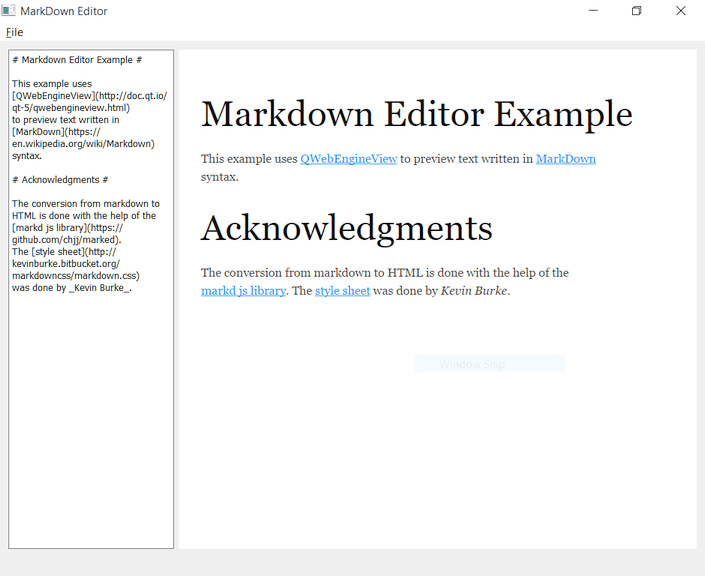
Markdown Editor demonstrates how to use https:// and JavaScript libraries to provide a rich text preview tool for a custom markup language.
http:// is a lightweight markup language with a plain text formatting syntax. Some services, such as http://, acknowledge the format, and render the content as rich text when viewed in a browser.
The Markdown Editor main window is split into an editor and a preview area. The editor supports the Markdown syntax and is implemented by using https://. The document is rendered as rich text in the preview area, which is implemented by using https://. To render the text, the Markdown text is converted to HTML format with the help of a JavaScript library inside the web engine. The preview is updated from the editor through https://.
Running the Example▲
To run the example from http://, open the Welcome mode and select the example from Examples. For more information, visit http://.
Exposing Document Text▲
Because we expose the current Markdown text to be rendered to the web engine through https://, we need to somehow make the current text available through the Qt metatype system. This is done by using a dedicated Document class that exposes the document text as a Q_PROPERTY:
class Document : public QObject
{
    Q_OBJECT
    Q_PROPERTY(QString text MEMBER m_text NOTIFY textChanged FINAL)
public:
    explicit Document(QObject *parent = nullptr) : QObject(parent) {}

    void setText(const QString &text);

signals:
    void textChanged(const QString &text);

private:
    QString m_text;
};
The Document class wraps a https:// to be set on the C++ side with the setText() method and exposes it at runtime as a text property with a textChanged signal.
We define the setText method as follows:
void Document::setText(const QString &text)
{
    if (text == m_text)
        return;
    m_text = text;
    emit textChanged(m_text);
}
Previewing Text▲
We implement our own PreviewPage class that publicly inherits from QWebEnginePage:
class PreviewPage : public QWebEnginePage
{
    Q_OBJECT
public:
    explicit PreviewPage(QObject *parent = nullptr) : QWebEnginePage(parent) {}

protected:
    bool acceptNavigationRequest(const QUrl &url, NavigationType type, bool isMainFrame);
};
We reimplement the virtual acceptNavigationRequest method to stop the page from navigating away from the current document. Instead, we redirect external links to the system browser:
bool PreviewPage::acceptNavigationRequest(const QUrl &url,
                                          QWebEnginePage::NavigationType /*type*/,
                                          bool /*isMainFrame*/)
{
    // Only allow qrc:/index.html.
    if (url.scheme() == QString("qrc"))
        return true;
    QDesktopServices::openUrl(url);
    return false;
}
Creating the Main Window▲
The MainWindow class inherits the https:// class:
class MainWindow : public QMainWindow
{
    Q_OBJECT

public:
    explicit MainWindow(QWidget *parent = nullptr);
    ~MainWindow();

    void openFile(const QString &path);

private slots:
    void onFileNew();
    void onFileOpen();
    void onFileSave();
    void onFileSaveAs();
    void onExit();

private:
    bool isModified() const;

    Ui::MainWindow *ui;
    QString m_filePath;
    Document m_content;
};
The class declares private slots that match the actions in the menu, as well as the isModified() helper method.
The actual layout of the main window is specified in a .ui file. The widgets and actions are available at runtime in the ui member variable.
m_filePath holds the file path to the currently loaded document. m_content is an instance of the Document class.
The actual setup of the different objects is done in the MainWindow constructor:
MainWindow::MainWindow(QWidget *parent) :
    QMainWindow(parent),
    ui(new Ui::MainWindow)
{
    ui->setupUi(this);
    ui->editor->setFont(QFontDatabase::systemFont(QFontDatabase::FixedFont));
    ui->preview->setContextMenuPolicy(Qt::NoContextMenu);
The constructor first calls setupUi to construct the widgets and menu actions according to the UI file. The text editor font is set to one with a fixed character width, and the https:// widget is told not to show a context menu.
    PreviewPage *page = new PreviewPage(this);
    ui->preview->setPage(page);
Here the constructor makes sure our custom PreviewPage is used by the https:// instance in ui->preview.
    connect(ui->editor, &QPlainTextEdit::textChanged,
            [this]() { m_content.setText(ui->editor->toPlainText()); });

    QWebChannel *channel = new QWebChannel(this);
    channel->registerObject(QStringLiteral("content"), &m_content);
    page->setWebChannel(channel);
Here the textChanged signal of the editor is connected to a lambda that updates the text in m_content. This object is then exposed to the JS side by QWebChannel under the name content.
ui->preview->setUrl(QUrl("qrc:/index.html"));Now we can actually load the index.html file from the resources. For more information about the file, see https://.
    connect(ui->actionNew, &QAction::triggered, this, &MainWindow::onFileNew);
    connect(ui->actionOpen, &QAction::triggered, this, &MainWindow::onFileOpen);
    connect(ui->actionSave, &QAction::triggered, this, &MainWindow::onFileSave);
    connect(ui->actionSaveAs, &QAction::triggered, this, &MainWindow::onFileSaveAs);
    connect(ui->actionExit, &QAction::triggered, this, &MainWindow::onExit);

    connect(ui->editor->document(), &QTextDocument::modificationChanged,
            ui->actionSave, &QAction::setEnabled);
The menu items are connected to the corresponding member slots. The Save item is activated or deactivated depending on whether the user has edited the content.
    QFile defaultTextFile(":/default.md");
    defaultTextFile.open(QIODevice::ReadOnly);
    ui->editor->setPlainText(defaultTextFile.readAll());
}
Finally, we load a default document default.md from the resources.
Creating an Index File▲
<!doctype html>
<html lang="en">
<meta charset="utf-8">
<head>
  <link rel="stylesheet" type="text/css" href="3rdparty/markdown.css">
  <script src="3rdparty/marked.js"></script>
  <script src="qrc:/qtwebchannel/qwebchannel.js"></script>
</head>
<body>
  <div id="placeholder"></div>
  <script>
  'use strict';

  var placeholder = document.getElementById('placeholder');

  var updateText = function(text) {
      placeholder.innerHTML = marked(text);
  }

  new QWebChannel(qt.webChannelTransport,
    function(channel) {
      var content = channel.objects.content;
      updateText(content.text);
      content.textChanged.connect(updateText);
    }
  );
  </script>
</body>
</html>
In the index.html, we load a custom stylesheet and two JavaScript libraries. http:// is a markdown-friendly stylesheet created by Kevin Burke. https:// is a markdown parser and compiler designed for speed written by Christopher Jeffrey and qwebchannel.js is part of the https:// module.
In the <body> element we first define a placeholder element, and make it available as a JavaScript variable. We then define the updateText helper method that updates the content of placeholder with the HTML that the JavaScript method marked() returns.
Finally, we set up the web channel to access the content proxy object and make sure that updateText() is called whenever content.text changes.
Files and Attributions▲
The example bundles the following code with third-party licenses:
|
https:// |
MIT License |
|
https:// |
Apache License 2.0 |
List of Files▲
Files:
List of Files▲
-
webenginewidgets/markdowneditor/document.cpp
-
webenginewidgets/markdowneditor/document.h
-
webenginewidgets/markdowneditor/main.cpp
-
webenginewidgets/markdowneditor/mainwindow.cpp
-
webenginewidgets/markdowneditor/mainwindow.h
-
webenginewidgets/markdowneditor/mainwindow.ui
-
webenginewidgets/markdowneditor/markdowneditor.pro
-
webenginewidgets/markdowneditor/previewpage.cpp
-
webenginewidgets/markdowneditor/previewpage.h
-
webenginewidgets/markdowneditor/resources/3rdparty/markdown.css
-
webenginewidgets/markdowneditor/resources/3rdparty/marked.js
-
webenginewidgets/markdowneditor/resources/index.html
-
webenginewidgets/markdowneditor/resources/markdowneditor.qrc