


Find Files Example▲
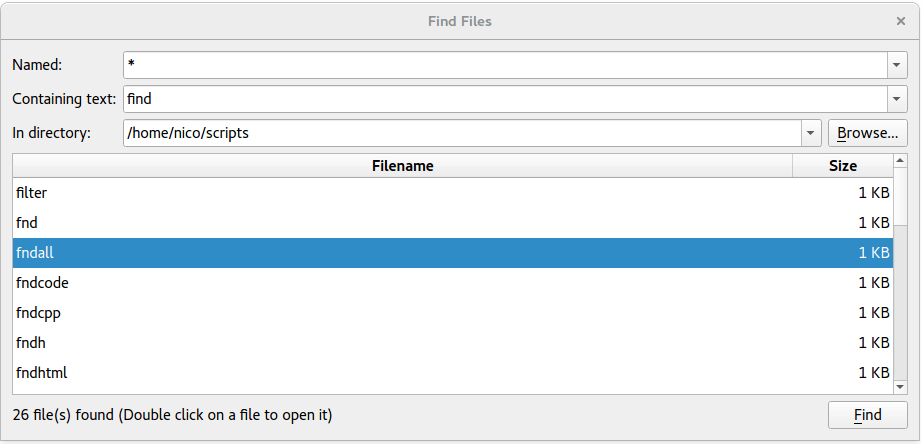
The Find Files application allows the user to search for files in a specified directory, matching a given file name or wildcard, and containing a specified string (if filled in). The search result is displayed in a table containing the names of the files and their sizes. The application also shows the number of files found.
The Find Files example illustrates the use of several classes:
|
https:// |
Provide feedback on the progress of a search operation |
|
https:// |
Browse through a file list |
|
https:// |
Use stream operators to read a file |
|
https:// |
Browse through the search results in a table |
|
https:// |
Open files in the result list in a suitable application |
Window Class Definition▲
The Window class inherits https://, and is the main application widget. It shows the search options and displays the search results.
class Window : public QWidget
{
    Q_OBJECT

public:
    Window(QWidget *parent = 0);

private slots:
    void browse();
    void find();
    void animateFindClick();
    void openFileOfItem(int row, int column);
    void contextMenu(const QPoint &pos);

private:
    QStringList findFiles(const QStringList &files, const QString &text);
    void showFiles(const QStringList &paths);
    QComboBox *createComboBox(const QString &text = QString());
    void createFilesTable();

    QComboBox *fileComboBox;
    QComboBox *textComboBox;
    QComboBox *directoryComboBox;
    QLabel *filesFoundLabel;
    QPushButton *findButton;
    QTableWidget *filesTable;

    QDir currentDir;
};
The application has two private slots:
|
The browse() slot |
Called whenever the user wants to browse for a directory to search in |
|
The find() slot |
Called whenever the user launches a search with the Find button |
In addition we declare several private functions:
|
findFiles() |
Search for files matching the search parameters |
|
showFiles() |
Display the search result |
|
ceateButton() |
Construct the widget |
|
createComboBox() |
Construct the widget |
|
createFilesTable() |
Construct the widget |
Window Class Implementation▲
In the constructor we first create the application's widgets.
Window::Window(QWidget *parent)
    : QWidget(parent)
{
    setWindowTitle(tr("Find Files"));
    QPushButton *browseButton = new QPushButton(tr("&Browse..."), this);
    connect(browseButton, &QAbstractButton::clicked, this, &Window::browse);
    findButton = new QPushButton(tr("&Find"), this);
    connect(findButton, &QAbstractButton::clicked, this, &Window::find);

    fileComboBox = createComboBox(tr("*"));
    connect(fileComboBox->lineEdit(), &QLineEdit::returnPressed,
            this, &Window::animateFindClick);
    textComboBox = createComboBox();
    connect(textComboBox->lineEdit(), &QLineEdit::returnPressed,
            this, &Window::animateFindClick);
    directoryComboBox = createComboBox(QDir::toNativeSeparators(QDir::currentPath()));
    connect(directoryComboBox->lineEdit(), &QLineEdit::returnPressed,
            this, &Window::animateFindClick);

    filesFoundLabel = new QLabel;

    createFilesTable();

    QGridLayout *mainLayout = new QGridLayout(this);
    mainLayout->addWidget(new QLabel(tr("Named:")), 0, 0);
    mainLayout->addWidget(fileComboBox, 0, 1, 1, 2);
    mainLayout->addWidget(new QLabel(tr("Containing text:")), 1, 0);
    mainLayout->addWidget(textComboBox, 1, 1, 1, 2);
    mainLayout->addWidget(new QLabel(tr("In directory:")), 2, 0);
    mainLayout->addWidget(directoryComboBox, 2, 1);
    mainLayout->addWidget(browseButton, 2, 2);
    mainLayout->addWidget(filesTable, 3, 0, 1, 3);
    mainLayout->addWidget(filesFoundLabel, 4, 0, 1, 2);
    mainLayout->addWidget(findButton, 4, 2);
We create the widgets to build up the UI, and we add them to a main layout using https://. We have, however, put the Find and Quit buttons and a stretchable space in a separate https:// first, to make the buttons appear in the Window widget's bottom right corner.
Alternatively, we could have used Qt Designer to construct a UI file, and https:// to generate this code.
    connect(new QShortcut(QKeySequence::Quit, this), &QShortcut::activated,
        qApp, &QApplication::quit);
We did not create a https:// with a Quit menu item; but we would still like to have a keyboard shortcut for quitting. Since we construct a https:// with https://, and connect it to https://(), on most platforms it will be possible to press Control-Q to quit (or whichever standard Quit key is configured on that platform). (On macOS, this is redundant, because every application gets a Quit menu item automatically; but it helps to make the application portable.)
void Window::browse()
{
    QString directory =
        QDir::toNativeSeparators(QFileDialog::getExistingDirectory(this, tr("Find Files"), QDir::currentPath()));

    if (!directory.isEmpty()) {
        if (directoryComboBox->findText(directory) == -1)
            directoryComboBox->addItem(directory);
        directoryComboBox->setCurrentIndex(directoryComboBox->findText(directory));
    }
}
The browse() slot presents a file dialog to the user, using the https:// class. https:// enables a user to traverse the file system in order to select one or many files or a directory. The easiest way to create a https:// is to use the convenience static functions.
Here we use the static https://() function which returns an existing directory selected by the user. Then we display the directory in the directory combobox using the https://() function and update the current index.
https://() adds an item to the combobox with the given text (if not already present in the list), and containing the specified userData. The item is appended to the list of existing items.
void Window::find()
{
    filesTable->setRowCount(0);

    QString fileName = fileComboBox->currentText();
    QString text = textComboBox->currentText();
    QString path = QDir::cleanPath(directoryComboBox->currentText());
    currentDir = QDir(path);
The find() slot is called whenever the user requests a new search by pressing the Find button.
First we eliminate any previous search results by setting the table widgets row count to zero. Then we retrieve the specified file name, text, and directory path from the respective comboboxes.
    QStringList filter;
    if (!fileName.isEmpty())
        filter << fileName;
    QDirIterator it(path, filter, QDir::AllEntries | QDir::NoSymLinks | QDir::NoDotAndDotDot, QDirIterator::Subdirectories);
    QStringList files;
    while (it.hasNext())
        files << it.next();
    if (!text.isEmpty())
        files = findFiles(files, text);
    files.sort();
    showFiles(files);
}
We use the directory's path to create a https://; the https:// class provides access to the directory structure and its contents.
We use https:// to iterate over the files that match the specified file name and build a https:// of paths.
Then we search through all the files in the list, using the private findFiles() function, eliminating the ones that don't contain the specified text. We sort them (because https:// did not). And finally, we display the results using the private showFiles() function.
If the user didn't specify any text, there is no reason to search through the files, so we sort and display the results immediately.
QStringList Window::findFiles(const QStringList &files, const QString &text)
{
    QProgressDialog progressDialog(this);
    progressDialog.setCancelButtonText(tr("&Cancel"));
    progressDialog.setRange(0, files.size());
    progressDialog.setWindowTitle(tr("Find Files"));
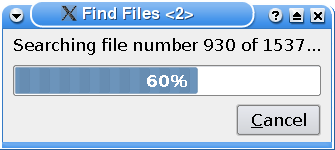
In the private findFiles() function we search through a list of files, looking for the ones that contain a specified text. This can be a very slow operation depending on the number of files as well as their sizes. https:// displays a progress dialog if the application has to search through a large number of files, or if some of the files have a large size. https:// can also allow the user to abort the operation if it takes too much time.
    QMimeDatabase mimeDatabase;
    QStringList foundFiles;

    for (int i = 0; i < files.size(); ++i) {
        progressDialog.setValue(i);
        progressDialog.setLabelText(tr("Searching file number %1 of %n...", 0, files.size()).arg(i));
        QCoreApplication::processEvents();
We run through the files, one at a time, and for each file we update the https:// value. This property holds the current amount of progress made. We also update the progress dialog's label.
Then we call the https://() function using the https:// object. In this way we interleave the display of the progress made with the process of searching through the files so the application doesn't appear to be frozen.
The https:// class manages the GUI application's control flow and main settings. It contains the main event loop, where all events from the window system and other sources are processed and dispatched. https:// inherits https://. The https://() function processes all pending events according to the specified QEventLoop::ProcessEventFlags until there are no more events to process. The default flags are https://.
        const QString fileName = files.at(i);
        const QMimeType mimeType = mimeDatabase.mimeTypeForFile(fileName);
        if (mimeType.isValid() && !mimeType.inherits(QStringLiteral("text/plain"))) {
            qWarning() << "Not searching binary file " << QDir::toNativeSeparators(fileName);
            continue;
        }
        QFile file(fileName);
        if (file.open(QIODevice::ReadOnly)) {
            QString line;
            QTextStream in(&file);
            while (!in.atEnd()) {
                if (progressDialog.wasCanceled())
                    break;
                line = in.readLine();
                if (line.contains(text, Qt::CaseInsensitive)) {
                    foundFiles << files[i];
                    break;
                }
            }
        }
    }
    return foundFiles;
}
After updating the https://, we open the file in read-only mode, and read one line at a time using https://.
The https:// class provides a convenient interface for reading and writing text. Using https://'s streaming operators, you can conveniently read and write words, lines and numbers.
For each line we read we check if the https:// has been canceled. If it has, we abort the operation, otherwise we check if the line contains the specified text. When we find the text within one of the files, we add the file's name to a list of found files that contain the specified text, and start searching a new file.
Finally, we return the list of the files found.
void Window::showFiles(const QStringList &paths)
{
    for (const QString &filePath : paths) {
        const QString toolTip = QDir::toNativeSeparators(filePath);
        const QString relativePath = QDir::toNativeSeparators(currentDir.relativeFilePath(filePath));
        const qint64 size = QFileInfo(filePath).size();
        QTableWidgetItem *fileNameItem = new QTableWidgetItem(relativePath);
        fileNameItem->setData(absoluteFileNameRole, QVariant(filePath));
        fileNameItem->setToolTip(toolTip);
        fileNameItem->setFlags(fileNameItem->flags() ^ Qt::ItemIsEditable);
        QTableWidgetItem *sizeItem = new QTableWidgetItem(QLocale().formattedDataSize(size));
        sizeItem->setData(absoluteFileNameRole, QVariant(filePath));
        sizeItem->setToolTip(toolTip);
        sizeItem->setTextAlignment(Qt::AlignRight | Qt::AlignVCenter);
        sizeItem->setFlags(sizeItem->flags() ^ Qt::ItemIsEditable);

        int row = filesTable->rowCount();
        filesTable->insertRow(row);
        filesTable->setItem(row, 0, fileNameItem);
        filesTable->setItem(row, 1, sizeItem);
    }
    filesFoundLabel->setText(tr("%n file(s) found (Double click on a file to open it)", 0, paths.size()));
    filesFoundLabel->setWordWrap(true);
}
Both the findFiles() and showFiles() functions are called from the find() slot. In the showFiles() function we run through the provided list of file names, adding each relative file name to the first column in the table widget and retrieving the file's size using https:// for the second column. We use https://() to format the file size in a human-readable form. For later use, we set the absolute path as a data on the https:// using the the role absoluteFileNameRole defined to be https:// + 1.
enum { absoluteFileNameRole = Qt::UserRole + 1 };This allows for retrieving the name of an item using a convenience function:
static inline QString fileNameOfItem(const QTableWidgetItem *item)
{
    return item->data(absoluteFileNameRole).toString();
}
We also update the total number of files found.
QComboBox *Window::createComboBox(const QString &text)
{
    QComboBox *comboBox = new QComboBox;
    comboBox->setEditable(true);
    comboBox->addItem(text);
    comboBox->setSizePolicy(QSizePolicy::Expanding, QSizePolicy::Preferred);
    return comboBox;
}
The private createComboBox() function is also called from the contructor. We create a https:// with the given text, and make it editable.
When the user enters a new string in an editable combobox, the widget may or may not insert it, and it can insert it in several locations, depending on the https://. The default policy is is https://.
Then we add the provided text to the combobox, and specify the widget's size policies, before we return a pointer to the combobox.
void Window::createFilesTable()
{
    filesTable = new QTableWidget(0, 2);
    filesTable->setSelectionBehavior(QAbstractItemView::SelectRows);

    QStringList labels;
    labels << tr("Filename") << tr("Size");
    filesTable->setHorizontalHeaderLabels(labels);
    filesTable->horizontalHeader()->setSectionResizeMode(0, QHeaderView::Stretch);
    filesTable->verticalHeader()->hide();
    filesTable->setShowGrid(false);
    filesTable->setContextMenuPolicy(Qt::CustomContextMenu);
    connect(filesTable, &QTableWidget::customContextMenuRequested,
            this, &Window::contextMenu);
    connect(filesTable, &QTableWidget::cellActivated,
            this, &Window::openFileOfItem);
}
The private createFilesTable() function is called from the constructor. In this function we create the https:// that will display the search results. We set its horizontal headers and their resize mode.
https:// inherits https:// which provides a default model/view implementation of a table view. The https://() function returns the table view's horizontal header as a https://. The https:// class provides a header row or header column for item views, and the QHeaderView::setResizeMode() function sets the constraints on how the section in the header can be resized.
Finally, we hide the https://'s vertical headers using the https://() function, and remove the default grid drawn for the table using the https://() function.
void Window::openFileOfItem(int row, int /* column */)
{
    const QTableWidgetItem *item = filesTable->item(row, 0);
    openFile(fileNameOfItem(item));
}

static inline void openFile(const QString &fileName)
{
    QDesktopServices::openUrl(QUrl::fromLocalFile(fileName));
}
The openFileOfItem() slot is invoked when the user double clicks on a cell in the table. The https://() knows how to open a file given the file name.
    filesTable->setContextMenuPolicy(Qt::CustomContextMenu);
    connect(filesTable, &QTableWidget::customContextMenuRequested,
            this, &Window::contextMenu);
    connect(filesTable, &QTableWidget::cellActivated,
            this, &Window::openFileOfItem);
void Window::contextMenu(const QPoint &pos)
{
    const QTableWidgetItem *item = filesTable->itemAt(pos);
    if (!item)
        return;
    QMenu menu;
#ifndef QT_NO_CLIPBOARD
    QAction *copyAction = menu.addAction("Copy Name");
#endif
    QAction *openAction = menu.addAction("Open");
    QAction *action = menu.exec(filesTable->mapToGlobal(pos));
    if (!action)
        return;
    const QString fileName = fileNameOfItem(item);
    if (action == openAction)
        openFile(fileName);
#ifndef QT_NO_CLIPBOARD
    else if (action == copyAction)
        QGuiApplication::clipboard()->setText(QDir::toNativeSeparators(fileName));
#endif
}
We set the context menu policy to of the table view to https:// and connect a slot contextMenu() to its signal customContextMenuRequested(). We retrieve the absolute file name from the data of the https:// and populate the context menu with actions offering to copy the file name and to open the file.
List of Files▲
Files:
List of Files▲
-
dialogs/findfiles/findfiles.pro
-
dialogs/findfiles/main.cpp
-
dialogs/findfiles/window.cpp
-
dialogs/findfiles/window.h