


Part 6 - Loading and Saving▲
This part covers the Qt file handling features we use to write loading and saving routines for the address book.
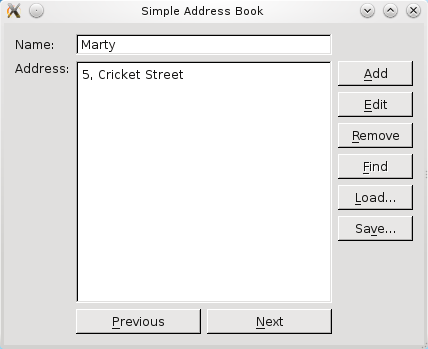
Although browsing and searching the contact list are useful features, our address book is not complete until we can save existing contacts and load them again at a later time.
Qt provides a number of classes for https://, but we have chosen to use two which are simple to use in combination: https:// and https://.
A https:// object represents a file on disk that can be read from and written to. https:// is a subclass of the more general https:// class which represents many different kinds of devices.
A https:// object is used to serialize binary data so that it can be stored in a https:// and retrieved again later. Reading from a https:// and writing to it is as simple as opening the stream - with the respective device as a parameter - and reading from or writing to it.
Defining the AddressBook Class▲
We declare two public slots, saveToFile() and loadFromFile(), as well as two https:// objects, loadButton and saveButton.
    void saveToFile();
    void loadFromFile();
    ...
    QPushButton *loadButton;
    QPushButton *saveButton;
Implementing the AddressBook Class▲
In our constructor, we instantiate loadButton and saveButton. Ideally, it would be more user-friendly to set the push buttons' labels to "Load contacts from a file" and "Save contacts to a file". However, due to the size of our other push buttons, we set the labels to Load... and Save.... Fortunately, Qt provides a simple way to set tooltips with https://() and we use it in the following way for our push buttons:
    loadButton->setToolTip(tr("Load contacts from a file"));
    ...
    saveButton->setToolTip(tr("Save contacts to a file"));
Although it is not shown here, just like the other features we implemented, we add the push buttons to the layout panel on the right, buttonLayout1, and we connect the push buttons' https://() signals to their respective slots.
For the saving feature, we first obtain fileName using https://(). This is a convenience function provided by https://, which pops up a modal file dialog and allows the user to enter a file name or select any existing .abk file. The .abk file is our Address Book extension that we create when we save contacts.
void AddressBook::saveToFile()
{
    QString fileName = QFileDialog::getSaveFileName(this,
        tr("Save Address Book"), "",
        tr("Address Book (*.abk);;All Files (*)"));
The file dialog that pops up is displayed in the screenshot below:
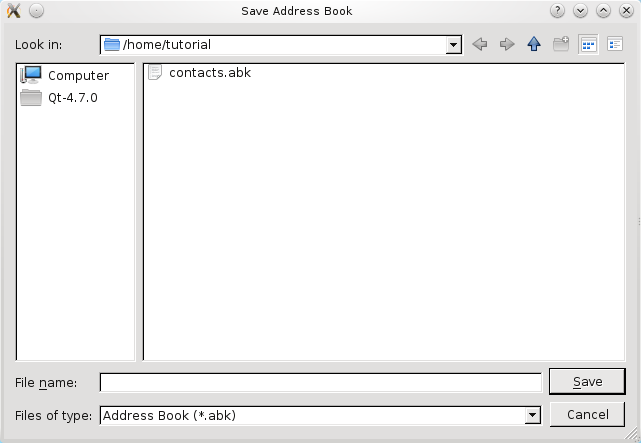
If fileName is not empty, we create a https:// object, file, with fileName. https:// works with https:// as https:// is a https://.
Next, we attempt to open the file in https:// mode. If this is unsuccessful, we display a https:// to inform the user.
    if (fileName.isEmpty())
        return;
    else {
        QFile file(fileName);
        if (!file.open(QIODevice::WriteOnly)) {
            QMessageBox::information(this, tr("Unable to open file"),
                file.errorString());
            return;
        }
Otherwise, we instantiate a https:// object, out, to write the open file. https:// requires that the same version of the stream is used for reading and writing. We ensure that this is the case by setting the version used to the https:// before serializing the data to file.
        QDataStream out(&file);
        out.setVersion(QDataStream::Qt_4_5);
        out << contacts;
    }
}
For the loading feature, we also obtain fileName using https://(). This function, the counterpart to https://(), also pops up the modal file dialog and allows the user to enter a file name or select any existing .abk file to load it into the address book.
void AddressBook::loadFromFile()
{
    QString fileName = QFileDialog::getOpenFileName(this,
        tr("Open Address Book"), "",
        tr("Address Book (*.abk);;All Files (*)"));
On Windows, for example, this function pops up a native file dialog, as shown in the following screenshot.
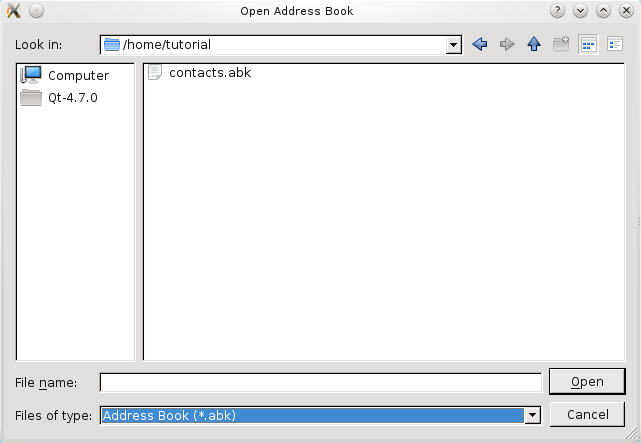
If fileName is not empty, again, we use a https:// object, file, and attempt to open it in https:// mode. Similar to our implementation of saveToFile(), if this attempt is unsuccessful, we display a https:// to inform the user.
    if (fileName.isEmpty())
        return;
    else {

        QFile file(fileName);

        if (!file.open(QIODevice::ReadOnly)) {
            QMessageBox::information(this, tr("Unable to open file"),
                file.errorString());
            return;
        }

        QDataStream in(&file);
        in.setVersion(QDataStream::Qt_4_5);
        contacts.clear();   // clear existing contacts
        in >> contacts;
Otherwise, we instantiate a https:// object, in, set its version as above and read the serialized data into the contacts data structure. The contacts object is emptied before data is read into it to simplify the file reading process. A more advanced method would be to read the contacts into a temporary https:// object, and copy over non-duplicate contacts into contacts.
        if (contacts.isEmpty()) {
            QMessageBox::information(this, tr("No contacts in file"),
                tr("The file you are attempting to open contains no contacts."));
        } else {
            QMap<QString, QString>::iterator i = contacts.begin();
            nameLine->setText(i.key());
            addressText->setText(i.value());
        }
    }

    updateInterface(NavigationMode);
}
To display the contacts that have been read from the file, we must first validate the data obtained to ensure that the file we read from actually contains address book contacts. If it does, we display the first contact; otherwise, we display a https:// to inform the user about the problem. Lastly, we update the interface to enable and disable the push buttons accordingly.
List of Files▲
Files:
List of Files▲
-
tutorials/addressbook/part6/addressbook.cpp
-
tutorials/addressbook/part6/addressbook.h
-
tutorials/addressbook/part6/finddialog.cpp
-
tutorials/addressbook/part6/finddialog.h
-
tutorials/addressbook/part6/main.cpp
-
tutorials/addressbook/part6/part6.pro