


Qt Quick 3D - Dynamic Texture Example▲
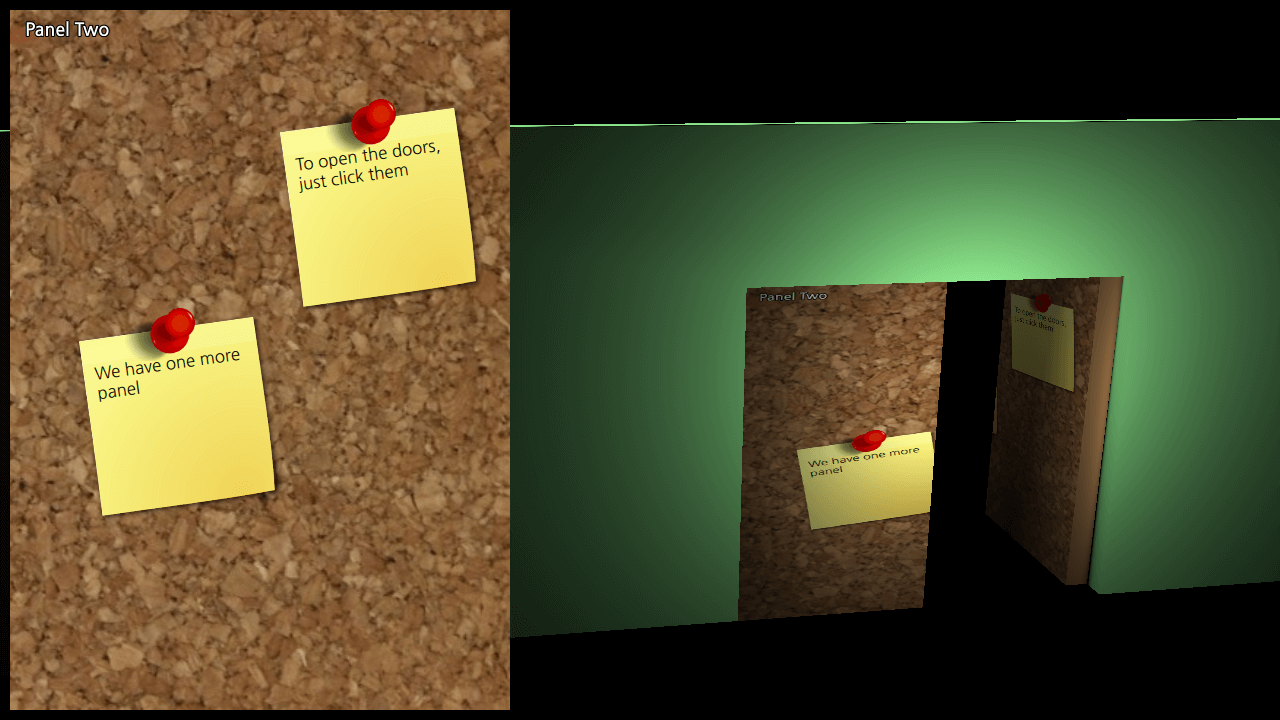
This example shows how to use 2D content from Qt Quick and use it as a texture for 3D objects. The 2D item used in this example is a fancy corkboard and it is textured onto a simple double door.
The 2D scene▲
The 2D content we use for this example is the CorkBoard scene from Qt Quick's https://. We put it in a Rectangle and show it on top of our https://.
Rectangle {
    id: object2d
    width: 500
    height: 700
    anchors.top: parent.top
    anchors.left: parent.left
    anchors.margins: 10

    CorkBoards { }

    clip: true
    layer.enabled: true
}
We give the 2D object the name object2d, so we can refer to it later.
The 3D view▲
To use the 2D content in our 3D scene, we first have to put it into a material. The texture is identified by the https:// property, referring back to object2d.
DefaultMaterial {
    id: doorMaterial
    diffuseMap: Texture {
        sourceItem: object2d
    }
}
We use the same material for each door, but different meshes. The meshes are designed so that the texture is divided evenly across the doors. In addition to setting the material and the source mesh, we also set the https:// property, so we can click on the doors to open and close them:
Model {
    id: door1
    ...
    source: "meshes/door1.mesh"
    materials: doorMaterial
    pickable: true
Finally, we add some interaction to our 3D scene, using https://:
TapHandler {
    gesturePolicy: TapHandler.WithinBounds
    onTapped: {
        var result = view.pick(point.position.x, point.position.y);
        if (result.objectHit) {
            console.log("pick dist", result.distance, "hit", result.objectHit,
                        "scene pos", result.scenePosition, "uv", result.uvPosition);
            var pickedDoor = result.objectHit;
            if (pickedDoor.state === "")
                pickedDoor.state = "opened";
            else
                pickedDoor.state = "";

        }
    }
}
Each door will open when clicked and its state is set to "opened".
states: State {
    name: "opened"
    PropertyChanges {
        target: door1
        eulerRotation.y: 90
    }
}
transitions: Transition {
    to: "opened"
    reversible: true
    SequentialAnimation {
        PropertyAnimation { property: "eulerRotation.y"; duration: 2000 }
    }
}
List of Files▲
Files:
List of Files▲
-
dynamictexture/CMakeLists.txt
-
dynamictexture/CorkBoards.qml
-
dynamictexture/Doors.qml
-
dynamictexture/content/Panel.qml
-
dynamictexture/dynamictexture.pro
-
dynamictexture/main.cpp
-
dynamictexture/main.qml
-
dynamictexture/qml.qrc
List of Files▲
Images:
List of Files▲
-
dynamictexture/content/cork.jpg
-
dynamictexture/content/note-yellow.png
-
dynamictexture/content/tack.png