


Qt Quick 3D - RuntimeLoader Example▲
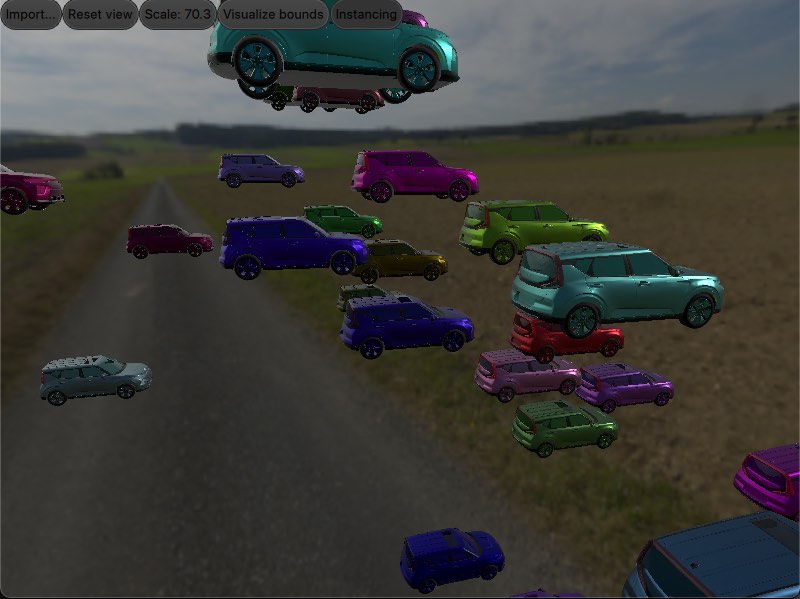
This example shows how to implement a simple asset viewer using the https://.
See the https:// for an explanation of how to set up a basic scene. Once we have the scene set up we can add the https:// item:
RuntimeLoader {
    id: importNode
    source: importUrl
    instancing: instancingButton.checked ? instancing : null
    onBoundsChanged: helper.updateBounds(bounds)
}
Loading an asset is done by setting the https://'s https:// property. In this example the https:// is bound to the importUrl which will be changed when the user selects a file in the file-dialog.
Assuming the asset can be loaded, the content will be created as children of the https:// importNode. Note that the https:// is a https:// type, and since it is also the root node for the loaded asset, any transforms applied to the importNode will also affect its children.
Error handling▲
If an asset fails to load then the https://'s https:// property will be set to Error. The https://'s https:// can then be queried to get a more detailed description of the error.
In this example we will be displaying the error message in a red message box in the middle of the screen, like this:
Rectangle {
    id: messageBox
    visible: importNode.status !== RuntimeLoader.Success
    color: "red"
    width: parent.width * 0.8
    height: parent.height * 0.8
    anchors.centerIn: parent
    radius: Math.min(width, height) / 10
    opacity: 0.6
    Text {
        anchors.fill: parent
        font.pixelSize: 36
        text: "Status: " + importNode.errorString + "\nPress \"Import...\" to import a model"
        color: "white"
        wrapMode: Text.Wrap
        horizontalAlignment: Text.AlignHCenter
        verticalAlignment: Text.AlignVCenter
    }
}
Moving the camera▲
To make it possible to change the position of the camera we use the https:// from the https:// module and bind it to our camera, like this:
OrbitCameraController {
    id: orbitController
    origin: orbitCameraNode
    camera: orbitCamera
    enabled: helper.orbitControllerEnabled
}
WasdController {
    id: wasdController
    controlledObject: wasdCamera
    enabled: !helper.orbitControllerEnabled
}
In addition to the https://, the example uses a https:// and a https:// to scale and rotate the model.
Instancing▲
The https:// item can also be used in combination with instancing, as shown here:
RandomInstancing {
    id: instancing
    instanceCount: 30
    position: InstanceRange {
        property alias boundsDiameter: helper.boundsDiameter
        from: Qt.vector3d(-3*boundsDiameter, -3*boundsDiameter, -3*boundsDiameter);
        to: Qt.vector3d(3*boundsDiameter, 3*boundsDiameter, 3*boundsDiameter)
    }
    color: InstanceRange { from: "black"; to: "white" }
}
https:// does not inherit from Model, but it has its own https:// property which allows us to instance a complex imported asset as if it were a simple model. In this case we use the https:// component from the https:// module to randomly position items within a fixed area and with a random color.
List of Files▲
Files:
List of Files▲
-
runtimeloader/CMakeLists.txt
-
runtimeloader/main.cpp
-
runtimeloader/main.qml
-
runtimeloader/qml.qrc
-
runtimeloader/runtimeloader.pro