


Qt Quick 3D Physics - Compound Shapes Example▲

This example demonstrates how to use more than one collision shape to create complex objects for collision detection. The scene consists of a green static plane and a series of links connected to each other. At the beginning, the simulation is disabled. After some time or when the user press the space key, the simulation will start. An animation will start that causes the leftmost link to move horizontally. Since the leftmost link is purely controlled by animation, the https:// property is set to true.
Setup▲
As usual we need to add our https://:
DynamicsWorld {
    id: physicsWorld
    running: false
    enableCCD: true
}
We do the usual setup where we have an environment, camera and lights:
environment: SceneEnvironment {
    antialiasingMode: SceneEnvironment.MSAA
    backgroundMode: SceneEnvironment.Color
    clearColor: "lightblue"
}

focus: true

PerspectiveCamera {
    id: camera
    position: Qt.vector3d(-200, 900, 1300)
    eulerRotation: Qt.vector3d(-10, 0, 0)
    clipFar: 15500
    clipNear: 1
}

DirectionalLight {
    eulerRotation.x: -45
    eulerRotation.y: 45
    castsShadow: true
    brightness: 1.5
    shadowFactor: 15
    shadowFilter: 10
    shadowMapFar: 100
    shadowBias: -0.01
    shadowMapQuality: Light.ShadowMapQualityVeryHigh
}
Physical objects▲
We have our regular static plane:
StaticRigidBody {
    position: Qt.vector3d(0, -100, 0)
    eulerRotation: Qt.vector3d(-90, 0, 0)
    collisionShapes: PlaneShape {}
    Model {
        source: "#Rectangle"
        scale: Qt.vector3d(500, 500, 0)
        materials: DefaultMaterial {
            diffuseColor: "green"
        }
        castsShadows: false
        receivesShadows: true
    }
}
Then we make instances of our links.
MeshLink {
    isKinematic: true
    position: Qt.vector3d(-6 * viewport.ringDistance, viewport.ringY, 0)
    eulerRotation: Qt.vector3d(90, 0, 0)
    color: "red"

    SequentialAnimation on x {
        running: physicsWorld.running
        PauseAnimation {
            duration: 7000
        }
        NumberAnimation {
            from: -6 * viewport.ringDistance
            to: -9 * viewport.ringDistance
            duration: 3000
            easing.type: Easing.InOutQuad
        }

        SequentialAnimation {
            NumberAnimation {
                from: -9 * viewport.ringDistance
                to: 3 * viewport.ringDistance
                easing.type: Easing.InOutCubic
                duration: 8000
            }
            NumberAnimation {
                to: -9 * viewport.ringDistance
                from: 3 * viewport.ringDistance
                easing.type: Easing.InOutCubic
                duration: 8000
            }
            loops: Animation.Infinite
        }
    }
}

CapsuleLink {
    position: Qt.vector3d(-5 * viewport.ringDistance, viewport.ringY, 0)
    eulerRotation: Qt.vector3d(90, 0, 0)
}

MeshLink {
    position: Qt.vector3d(-4 * viewport.ringDistance, viewport.ringY, 0)
    eulerRotation: Qt.vector3d(90, 0, 0)
}

MeshLink {
    position: Qt.vector3d(-3 * viewport.ringDistance, viewport.ringY, 0)
    eulerRotation: Qt.vector3d(0, 90, 0)
}

MeshLink {
    position: Qt.vector3d(-2 * viewport.ringDistance, viewport.ringY, 0)
    eulerRotation: Qt.vector3d(90, 0, 0)
}

MeshLink {
    position: Qt.vector3d(-1 * viewport.ringDistance, viewport.ringY, 0)
    eulerRotation: Qt.vector3d(0, 90, 0)
}

CapsuleLink {
    position: Qt.vector3d(0, viewport.ringY, 0)
}

MeshLink {
    position: Qt.vector3d(1 * viewport.ringDistance, viewport.ringY, 0)
    eulerRotation: Qt.vector3d(0, 90, 0)
}

MeshLink {
    position: Qt.vector3d(2 * viewport.ringDistance, viewport.ringY, 0)
    eulerRotation: Qt.vector3d(90, 0, 0)
}

MeshLink {
    position: Qt.vector3d(3 * viewport.ringDistance, viewport.ringY, 0)
    eulerRotation: Qt.vector3d(0, 90, 0)
}

MeshLink {
    position: Qt.vector3d(4 * viewport.ringDistance, viewport.ringY, 0)
    eulerRotation: Qt.vector3d(90, 0, 0)
}

CapsuleLink {
    position: Qt.vector3d(5 * viewport.ringDistance, viewport.ringY, 0)
    eulerRotation: Qt.vector3d(90, 0, 0)
}

MeshLink {
    isKinematic: true
    position: Qt.vector3d(6 * viewport.ringDistance, viewport.ringY, 0)
    eulerRotation: Qt.vector3d(90, 0, 0)
    color: "red"
}
The first link which is on the left has its https:// property set to true so that we can control it via animation. The other links are instanced with some spacing between them.
The interesting part is what is happening inside the Mesh and Capsule Links files. Let's take a look at each one of them.
Mesh Link▲
DynamicRigidBody {
    scale: Qt.vector3d(100, 100, 100)
    property color color: "white"
    PrincipledMaterial {
        id: _material
        baseColor: color
        metalness: 1.0
        roughness: 0.5
    }

    Model {
        source: "meshes/ring.mesh"
        materials: [
            _material
        ]
    }

    collisionShapes: [
        ConvexMeshShape {
            meshSource: "meshes/segmentedRing_001.mesh"
        },
        ConvexMeshShape {
            meshSource: "meshes/segmentedRing_002.mesh"
        },
        ConvexMeshShape {
            meshSource: "meshes/segmentedRing_003.mesh"
        },
        ConvexMeshShape {
            meshSource: "meshes/segmentedRing_004.mesh"
        },
        ConvexMeshShape {
            meshSource: "meshes/segmentedRing_005.mesh"
        },
        ConvexMeshShape {
            meshSource: "meshes/segmentedRing_006.mesh"
        },
        ConvexMeshShape {
            meshSource: "meshes/segmentedRing_007.mesh"
        },
        ConvexMeshShape {
            meshSource: "meshes/segmentedRing_008.mesh"
        },
        ConvexMeshShape {
            meshSource: "meshes/segmentedRing_009.mesh"
        },
        ConvexMeshShape {
            meshSource: "meshes/segmentedRing_010.mesh"
        },
        ConvexMeshShape {
            meshSource: "meshes/segmentedRing_011.mesh"
        },
        ConvexMeshShape {
            meshSource: "meshes/segmentedRing_012.mesh"
        }
    ]
}
The Mesh Link is a Dynamic Rigid Body with a model and a material. The model loads the mesh from a mesh file. We also have a list of collision shapes that together are combined and form a compound shape for collision detection. Each shape is a Convex Mesh shape which loads the mesh from a source file. A convex shape is basically a shape where the line between any two points within the shape is always inside the shape.
If we take a closer look when the debug mode is enabled, this is how the collision shapes form the compound collision shape:

Capsule Link▲
DynamicRigidBody {
    property real len: 170
    property real w: 17
    PrincipledMaterial {
        id: material3
        baseColor: "yellow"
        metalness: 1.0
        roughness: 0.5
    }
    Node {
        opacity: 1
        Model {
            materials: material3
            source: "#Cylinder"
            scale: Qt.vector3d(w/100, len/100, w/100)
            eulerRotation.z: 90
            y: -len/2
        }
        Model {
            materials: material3
            source: "#Cylinder"
            scale: Qt.vector3d(w/100, len/100, w/100)
            eulerRotation.z: 90
            y: len/2
        }
        Model {
            materials: material3
            source: "#Cylinder"
            scale: Qt.vector3d(w/100, len/100, w/100)
            x: len/2
        }
        Model {
            materials: material3
            source: "#Cylinder"
            scale: Qt.vector3d(w/100, len/100, w/100)
            x: -len/2
        }
        Model {
            materials: material3
            source: "#Sphere"
            scale: Qt.vector3d(w/100, w/100, w/100)
            x: -len/2
            y: -len/2
        }
        Model {
            materials: material3
            source: "#Sphere"
            scale: Qt.vector3d(w/100, w/100, w/100)
            x: -len/2
            y: len/2
        }
        Model {
            materials: material3
            source: "#Sphere"
            scale: Qt.vector3d(w/100, w/100, w/100)
            x: len/2
            y: -len/2
        }
        Model {
            materials: material3
            source: "#Sphere"
            scale: Qt.vector3d(w/100, w/100, w/100)
            x: len/2
            y: len/2
        }
    }
    collisionShapes: [
        CapsuleShape {
            y: -len/2
            height: len
            diameter: w
        },
        CapsuleShape {
            y: len/2
            height: len
            diameter: w
        },
        CapsuleShape {
            x: -len/2
            eulerRotation.z: 90
            height: len
            diameter: w
        },
        CapsuleShape {
            x: len/2
            eulerRotation.z: 90
            height: len
            diameter: w
        }
    ]
}
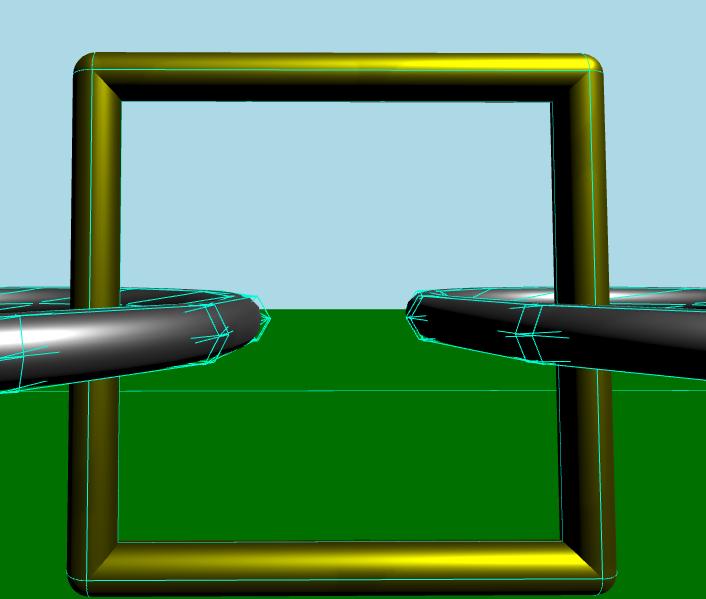
The Capsule Link is a Dynamic Rigid Body with some models that share the same material. This link is formed from several cylinders and spheres. Like the Mesh Link we have a list of collision shapes. This time each shape is a Capsule Shape.
If we take a closer look when the debug mode is enabled, this is how the collision shapes form the compound collision shape.
List of Files▲
Files:
List of Files▲
-
compoundshapes/CMakeLists.txt
-
compoundshapes/CapsuleLink.qml
-
compoundshapes/MeshLink.qml
-
compoundshapes/compoundshapes.pro
-
compoundshapes/main.cpp
-
compoundshapes/main.qml
-
compoundshapes/qml.qrc
-
compoundshapes/resources.qrc