


WebEngine Quick Nano Browser▲
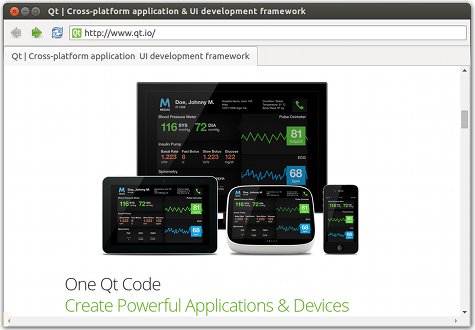
Quick Nano Browser demonstrates how to use the https:// to develop a small web browser application that consists of a browser window with a title bar, toolbar, tab view, and status bar. The web content is loaded in a web engine view within the tab view. If certificate errors occur, users are prompted for action in a message dialog. The status bar pops up to display the URL of a hovered link.
A web page can issue a request for being displayed in fullscreen mode. Users can allow full screen mode by using a toolbar button. They can leave fullscreen mode by using a keyboard shortcut. Additional toolbar buttons enable moving backwards and forwards in the browser history, reloading tab content, and opening a settings menu for enabling the following features: JavaScript, plugins, fullscreen mode, off the record, HTTP disk cache, autoloading images, and ignoring certificate errors.
Running the Example▲
To run the example from https://, open the Welcome mode and select the example from Examples. For more information, visit https://.
Creating the Main Browser Window▲
When the browser main window is loaded, it creates an empty tab using the default profile. Each tab is a web engine view that fills the main window.
We create the main window in the BrowserWindow.qml file using the https:// type:
ApplicationWindow {
    id: browserWindow
    property QtObject applicationRoot
    property Item currentWebView: tabBar.currentIndex < tabBar.count ? tabLayout.children[tabBar.currentIndex] : null
    ...
    width: 1300
    height: 900
    visible: true
    title: currentWebView && currentWebView.title
We use the https:// Qt Quick control to create a tab bar anchored to the top of the window, and create a new, empty tab:
    TabBar {
        id: tabBar
        anchors.top: parent.top
        anchors.left: parent.left
        anchors.right: parent.right
        Component.onCompleted: createTab(defaultProfile)

        function createTab(profile, focusOnNewTab = true, url = undefined) {
            var webview = tabComponent.createObject(tabLayout, {profile: profile});
            var newTabButton = tabButtonComponent.createObject(tabBar, {tabTitle: Qt.binding(function () { return webview.title; })});
            tabBar.addItem(newTabButton);
            if (focusOnNewTab) {
                tabBar.setCurrentIndex(tabBar.count - 1);
            }
The tab contains a web engine view that loads web content:
        Component {
            id: tabComponent
            WebEngineView {
                id: webEngineView
                focus: true

                onLinkHovered: function(hoveredUrl) {
                    if (hoveredUrl == "")
                        hideStatusText.start();
                    else {
                        statusText.text = hoveredUrl;
                        statusBubble.visible = true;
                        hideStatusText.stop();
                    }
                }

                states: [
                    State {
                        name: "FullScreen"
                        PropertyChanges {
                            target: tabBar
                            visible: false
                            height: 0
                        }
                        PropertyChanges {
                            target: navigationBar
                            visible: false
                        }
                    }
                ]
                settings.localContentCanAccessRemoteUrls: true
                settings.localContentCanAccessFileUrls: false
                settings.autoLoadImages: appSettings.autoLoadImages
                settings.javascriptEnabled: appSettings.javaScriptEnabled
                settings.errorPageEnabled: appSettings.errorPageEnabled
                settings.pluginsEnabled: appSettings.pluginsEnabled
                settings.fullScreenSupportEnabled: appSettings.fullScreenSupportEnabled
                settings.autoLoadIconsForPage: appSettings.autoLoadIconsForPage
                settings.touchIconsEnabled: appSettings.touchIconsEnabled
                settings.webRTCPublicInterfacesOnly: appSettings.webRTCPublicInterfacesOnly
                settings.pdfViewerEnabled: appSettings.pdfViewerEnabled

                onCertificateError: function(error) {
                    error.defer();
                    sslDialog.enqueue(error);
                }

                onNewWindowRequested: function(request) {
                    if (!request.userInitiated)
                        console.warn("Blocked a popup window.");
                    else if (request.destination === WebEngineNewWindowRequest.InNewTab) {
                        var tab = tabBar.createTab(currentWebView.profile, true, request.requestedUrl);
                        tab.acceptAsNewWindow(request);
                    } else if (request.destination === WebEngineNewWindowRequest.InNewBackgroundTab) {
                        var backgroundTab = tabBar.createTab(currentWebView.profile, false);
                        backgroundTab.acceptAsNewWindow(request);
                    } else if (request.destination === WebEngineNewWindowRequest.InNewDialog) {
                        var dialog = applicationRoot.createDialog(currentWebView.profile);
                        dialog.currentWebView.acceptAsNewWindow(request);
                    } else {
                        var window = applicationRoot.createWindow(currentWebView.profile);
                        window.currentWebView.acceptAsNewWindow(request);
                    }
                }

                onFullScreenRequested: function(request) {
                    if (request.toggleOn) {
                        webEngineView.state = "FullScreen";
                        browserWindow.previousVisibility = browserWindow.visibility;
                        browserWindow.showFullScreen();
                        fullScreenNotification.show();
                    } else {
                        webEngineView.state = "";
                        browserWindow.visibility = browserWindow.previousVisibility;
                        fullScreenNotification.hide();
                    }
                    request.accept();
                }

                onQuotaRequested: function(request) {
                    if (request.requestedSize <= 5 * 1024 * 1024)
                        request.accept();
                    else
                        request.reject();
                }

                onRegisterProtocolHandlerRequested: function(request) {
                    console.log("accepting registerProtocolHandler request for "
                                + request.scheme + " from " + request.origin);
                    request.accept();
                }

                onRenderProcessTerminated: function(terminationStatus, exitCode) {
                    var status = "";
                    switch (terminationStatus) {
                    case WebEngineView.NormalTerminationStatus:
                        status = "(normal exit)";
                        break;
                    case WebEngineView.AbnormalTerminationStatus:
                        status = "(abnormal exit)";
                        break;
                    case WebEngineView.CrashedTerminationStatus:
                        status = "(crashed)";
                        break;
                    case WebEngineView.KilledTerminationStatus:
                        status = "(killed)";
                        break;
                    }

                    print("Render process exited with code " + exitCode + " " + status);
                    reloadTimer.running = true;
                }

                onSelectClientCertificate: function(selection) {
                    selection.certificates[0].select();
                }

                onFindTextFinished: function(result) {
                    if (!findBar.visible)
                        findBar.visible = true;

                    findBar.numberOfMatches = result.numberOfMatches;
                    findBar.activeMatch = result.activeMatch;
                }

                onLoadingChanged: function(loadRequest) {
                    if (loadRequest.status == WebEngineView.LoadStartedStatus)
                        findBar.reset();
                }

                Timer {
                    id: reloadTimer
                    interval: 0
                    running: false
                    repeat: false
                    onTriggered: currentWebView.reload()
                }
            }
        }
We use the https:// type to create new tabs:
    Action {
        shortcut: StandardKey.AddTab
        onTriggered: {
            tabBar.createTab(tabBar.count != 0 ? currentWebView.profile : defaultProfile);
            addressBar.forceActiveFocus();
            addressBar.selectAll();
        }
We use the https:// Qt Quick Control within a https:// to create an address bar that shows the current URL and where users can enter another URL:
    menuBar: ToolBar {
        id: navigationBar
        RowLayout {
            anchors.fill: parent
    ...
            TextField {
                id: addressBar
    ...
                focus: true
                Layout.fillWidth: true
                Binding on text {
                    when: currentWebView
                    value: currentWebView.url
                }
                onAccepted: currentWebView.url = Utils.fromUserInput(text)
                selectByMouse: true
            }
Handling Certificate Errors▲
If the certificate of the site being loaded triggers a certificate error, we call the https://() QML method to pause the URL request and wait for user input:
                onCertificateError: function(error) {
                    error.defer();
                    sslDialog.enqueue(error);
                }
We use the Dialog type to prompt users to continue or cancel the loading of the web page. If users select Yes, we call the https://() method to continue loading content from the URL. If users select No, we call the https://() method to reject the request and stop loading content from the URL:
    Dialog {
        id: sslDialog
        anchors.centerIn: parent
        contentWidth: Math.max(mainText.width, detailedText.width)
        contentHeight: mainText.height + detailedText.height
        property var certErrors: []
        // fixme: icon!
        // icon: StandardIcon.Warning
        standardButtons: Dialog.No | Dialog.Yes
        title: "Server's certificate not trusted"
        contentItem: Item {
            id: textContentItem
            Label {
                id: mainText
                text: "Do you wish to continue?"
            }
            Text {
                id: detailedText
                anchors.top: mainText.bottom
                text: "If you wish so, you may continue with an unverified certificate.\n" +
                      "Accepting an unverified certificate means\n" +
                      "you may not be connected with the host you tried to connect to.\n" +
                      "Do you wish to override the security check and continue?"
            }
        }

        onAccepted: {
            certErrors.shift().acceptCertificate();
            presentError();
        }
        onRejected: reject()

        function reject(){
            certErrors.shift().rejectCertificate();
            presentError();
        }
        function enqueue(error){
            certErrors.push(error);
            presentError();
        }
        function presentError(){
            visible = certErrors.length > 0
        }
    }
Entering and Leaving Fullscreen Mode▲
We create a menu item for allowing fullscreen mode in a settings menu that we place on the tool bar. Also, we create an action for leaving fullscreen mode by using a keyboard shortcut. We call the https://() method to accept the fullscreen request. The methdod sets the https:// property to be equal to the https:// property.
                onFullScreenRequested: function(request) {
                    if (request.toggleOn) {
                        webEngineView.state = "FullScreen";
                        browserWindow.previousVisibility = browserWindow.visibility;
                        browserWindow.showFullScreen();
                        fullScreenNotification.show();
                    } else {
                        webEngineView.state = "";
                        browserWindow.visibility = browserWindow.previousVisibility;
                        fullScreenNotification.hide();
                    }
                    request.accept();
                }
When entering fullscreen mode, we display a notification using the FullScreenNotification custom type that we create in FullScreenNotification.qml.
We use the https:// type in the settings menu to create a shortcut for leaving fullscreen mode by pressing the escape key:
    Settings {
        id : appSettings
        property alias fullScreenSupportEnabled: fullScreenSupportEnabled.checked
        property alias autoLoadIconsForPage: autoLoadIconsForPage.checked
        property alias touchIconsEnabled: touchIconsEnabled.checked
        property alias webRTCPublicInterfacesOnly : webRTCPublicInterfacesOnly.checked
        property alias devToolsEnabled: devToolsEnabled.checked
        property alias pdfViewerEnabled: pdfViewerEnabled.checked
    }

    Action {
        shortcut: "Escape"
        onTriggered: {
            if (currentWebView.state == "FullScreen") {
                browserWindow.visibility = browserWindow.previousVisibility;
                fullScreenNotification.hide();
                currentWebView.triggerWebAction(WebEngineView.ExitFullScreen);
            }

            if (findBar.visible)
                findBar.visible = false;
        }
    }
Files and Attributions▲
The example uses icons from the Tango Icon Library:
|
Tango Icon Library |
Public Domain |
Example project▲
https://