


WebEngine Notifications Example▲
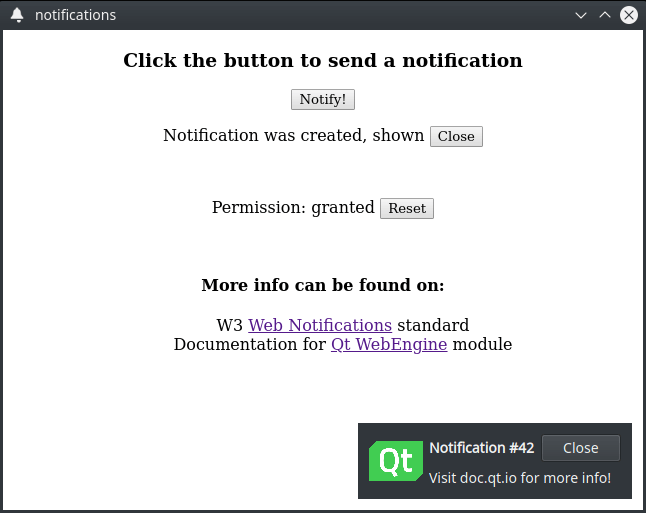
WebEngine Notifications demonstrates how to use the QWebEngineProfile::setNotificationPresenter() method and QWebEngineNotification class to show an HTML5 web notification to the user.
Running the Example▲
To run the example from Qt Creator, open the Welcome mode and select the example from Examples. For more information, visit Building and Running an Example.
HTML Page▲
In this example, we create an internal HTML page that is added through a resource collection file (.qrc). The page displays buttons for requesting permissions and contains necessary JavaScript code to trigger this request:
            Notification.requestPermission().then(function (permission) {
                if (permission == 'granted')
                    createNotification()
            })
Also page contains a button for creating a notification. The following JavaScript constructions are executed on the press event:
    function createNotification() {
        let title = 'Notification #' + ++notificationsCreated
        let options = { body: 'Visit doc.qt.io for more info!', icon: 'icon.png', }

        let notification = new Notification(title, options)
    }
Main Function▲
In the main function, we instantiate a QWebEngineView, load our internal HTML page, and set up the required callbacks for notifications handling.
Requesting Feature Permissions▲
We then use the QWebEnginePage::featurePermissionRequested() call to request the user's permission to show notifications on their device.
    QObject::connect(view.page(), &QWebEnginePage::featurePermissionRequested,
                     [&] (const QUrl &origin, QWebEnginePage::Feature feature) {
                         if (feature != QWebEnginePage::Notifications)
                             return;
                         view.page()->setFeaturePermission(origin, feature, QWebEnginePage::PermissionGrantedByUser);
                     });
Handling New Notifications▲
We then construct a NotificationPopup that encapsulates the data of the HTML web notification. We also use the QWebEngineProfile::setNotificationPresenter() call to set our handler, which we use in conjunction with our popup to handle all new notifications.
    auto popup = new NotificationPopup(&view);
    profile->setNotificationPresenter([&] (std::unique_ptr<QWebEngineNotification> notification)
                                      { popup->present(notification); });
Presenting Notifications to Users▲
The NotificationPopup class in this example is a simple QWidget-based class that uses multiple QLabel instances for displaying the notification's title, message, and icon.
class NotificationPopup : public QWidget
{
    Q_OBJECT

    QLabel m_icon, m_title, m_message;
    std::unique_ptr<QWebEngineNotification> notification;
Presenting Notifications▲
Inside the present method, we first close and release the previous notification if we have one and then take ownership of a new notification by calling the std::unique_ptr::swap method on our internal notification instance.
    void present(std::unique_ptr<QWebEngineNotification> &newNotification)
    {
        if (notification) {
            notification->close();
            notification.reset();
        }

        notification.swap(newNotification);
Then we query the notification instance for a title, a message, and an icon by calling QWebEngineNotification::title(), QWebEngineNotification::message(), QWebEngineNotification::icon() and set up the appropriate labels in our popup.
        m_title.setText("<b>" + notification->title() + "</b>");
        m_message.setText(notification->message());
        m_icon.setPixmap(QPixmap::fromImage(notification->icon()).scaledToHeight(m_icon.height()));
After that we are ready to display our notification to the user by calling the QWidget::show() method. On this step we also call the QWebEngineNotification::show() method to notify JavaScript code about our show event.
        show();
        notification->show();
Finally, we set up a callback to handle the close event from the JavaScript side by connecting to the QWebEngineNotification::closed() signal. We also schedule a timer event to close our active notification automatically.
        connect(notification.get(), &QWebEngineNotification::closed, this, &NotificationPopup::onClosed);
        QTimer::singleShot(10000, notification.get(), [&] () { onClosed(); });

    }
Closing Active Notification▲
We execute the close step for the currently active notification either by timeout or by handling the JavaScript event. First, we hide the popup widget itself by calling QWidget::hide(). Then, we notify the JavaScript code by calling the QWebEngineNotification::close() method. Finally, we destroy the notification object through the std::unique_ptr::reset() method.
    void onClosed()
    {
        hide();
        notification->close();
        notification.reset();
    }
Implementing User Interaction▲
To implement the click step for a notification, we handle mouse interaction through QWidget::mouseReleaseEvent(). On this event, the JavaScript code is notified by calling the QWebEngineNotification::click() method. Then we automatically perform the close step as a notification is considered fully handled and no longer needed, and therefore can be destroyed.
    void mouseReleaseEvent(QMouseEvent *event) override
    {
        QWidget::mouseReleaseEvent(event);
        if (notification && event->button() == Qt::LeftButton) {
            notification->click();
            onClosed();
        }
    }