


Qt Quick 3D - Quick Items Example▲
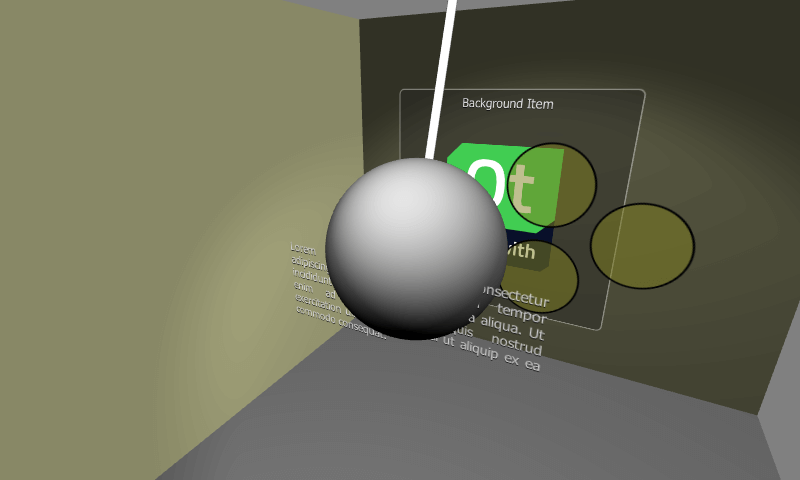
This example demonstrates using https://.
Quick Items in a Quick 3D Scene▲
Qt Quick 2D https://s, together with all their child items, can be added into Quick 3D scenes. When using Qt Quick types in the 3D scene, there are a few things to note:
-
When an https:// is inside a https://, its top-left corner is placed to the Node's origin. This means that the item will often want to specify anchors.centerIn: parent to ensure the https://'s origin serves the center point of the https://.
-
3D transforms are inherited from the parent https://. If more than one Item should be affected by the same transform, then these items can be grouped together under a common parent https:// under the https://.
-
In Qt 6.0, items do not receive touch/mouse events e.g. with MouseArea, so they should be non-interactive.
-
Quick items are not affected by lights and shadows.
-
https:// should be avoided and not relied on.
Unlike earlier Qt versions, and other 2D-in-3D embedding approaches, parenting a Qt Quick item to a Qt Quick 3D node does not imply creating a texture, rendering the 2D content to it, and then drawing a textured quad. Rather, Qt 6.0 supports rendering the 2D content within the same render pass as the 3D scene. This can present potentially huge performance improvements in practice. This does not apply when the Item were to render using an additional render target by design, for example because it has https:// set to true, or because it is a https://.
The test scene▲
The important parts of this example are the scene content of the View3D element.
We start by adding the layer furthest away from the camera. This layer contains Rectangle, Text and Image elements. To ensure that the elements in the layer are positioned correctly they are grouped together under a common parent Item. Note that all content is clipped inside this root item so it needs to be sized appropriately.
Node {
    position: Qt.vector3d(0, 100, -120)
    Item {
        width: 400
        height: 400
        anchors.centerIn: parent
        Rectangle {
            anchors.fill: parent
            opacity: 0.4
            color: "#202020"
            radius: 10
            border.width: 2
            border.color: "#f0f0f0"
        }
        Text {
            anchors.top: parent.top
            anchors.topMargin: 10
            anchors.horizontalCenter: parent.horizontalCenter
            font.pixelSize: 20
            color: "#e0e0e0"
            style: Text.Raised
            text: qsTr("Background Item")
        }
        Image {
            anchors.centerIn: parent
            source: "Built_with_Qt_RGB_logo_vertical"
        }
    }
}
Next Node and its items are positioned a bit closer to the camera. It contains three Rectangle items which animate both the x position and the rotation. Note that the animations are done on the parent Node while the content of the Quick Item remains static. From a performance perspective this is a good approach with more complex items.
Node {
    position: Qt.vector3d(0, 150, 100)
    SequentialAnimation on x {
        loops: Animation.Infinite
        NumberAnimation {
            to: -200
            duration: 1500
            easing.type: Easing.InOutQuad
        }
        NumberAnimation {
            to: 200
            duration: 1500
            easing.type: Easing.InOutQuad
        }
    }
    NumberAnimation on eulerRotation.z {
        loops: Animation.Infinite
        from: 0
        to: 360
        duration: 4000
        easing.type: Easing.InOutBack
    }
    Item {
        width: 400
        height: 400
        anchors.centerIn: parent
        // This allows rendering into offscreen surface and caching it.
        layer.enabled: true
        Rectangle {
            x: 150
            y: 100
            width: 100
            height: 100
            radius: 50
            color: "#80808020"
            border.color: "black"
            border.width: 2
        }
        Rectangle {
            x: 90
            y: 200
            width: 100
            height: 100
            radius: 50
            color: "#80808020"
            border.color: "black"
            border.width: 2
        }
        Rectangle {
            x: 210
            y: 200
            width: 100
            height: 100
            radius: 50
            color: "#80808020"
            border.color: "black"
            border.width: 2
        }
    }
}
The third item layer of this example contains a single Text item with an opacity animation. The Text item is automatically centered into the parent Node.
Node {
    position: Qt.vector3d(0, 80, 250)
    Text {
        anchors.centerIn: parent
        width: 300
        wrapMode: Text.WordWrap
        horizontalAlignment: Text.AlignJustify
        font.pixelSize: 14
        color: "#e0e0e0"
        style: Text.Raised
        text: "Lorem ipsum dolor sit amet, consectetur adipiscing elit, sed do eiusmod " +
              "tempor incididunt ut labore et dolore magna aliqua. Ut enim ad minim " +
              "veniam, quis nostrud exercitation ullamco laboris nisi ut aliquip ex ea " +
              "commodo consequat."
        SequentialAnimation on opacity {
            loops: Animation.Infinite
            NumberAnimation {
                to: 0
                duration: 1500
                easing.type: Easing.InOutQuad
            }
            NumberAnimation {
                to: 1
                duration: 1500
                easing.type: Easing.InOutQuad
            }
        }
    }
}
To visualize z-ordering of the above Quick Item layers, we will also setup a model for the 3D wrecking ball. It animates rotation around the top Node, which makes the sphere move through the other layers.
Node {
    position: Qt.vector3d(0, 800, 0)
    SequentialAnimation on eulerRotation.x {
        loops: Animation.Infinite
        NumberAnimation {
            to: 20
            duration: 3500
            easing.type: Easing.InOutQuad
        }
        NumberAnimation {
            to: -20
            duration: 3500
            easing.type: Easing.InOutQuad
        }
    }
    Model {
        source: "#Cylinder"
        y: -300
        scale: Qt.vector3d(0.1, 6.1, 0.1)
        materials: DefaultMaterial {
            diffuseColor: Qt.rgba(0.9, 0.9, 0.9, 1.0)
        }
    }
    Model {
        source: "#Sphere"
        y: -700
        scale: Qt.vector3d(2, 2, 2)
        materials: DefaultMaterial {
            diffuseColor: Qt.rgba(0.4, 0.4, 0.4, 1.0)
        }
    }
}