


Qt Quick 3D Physics - Impeller Example▲
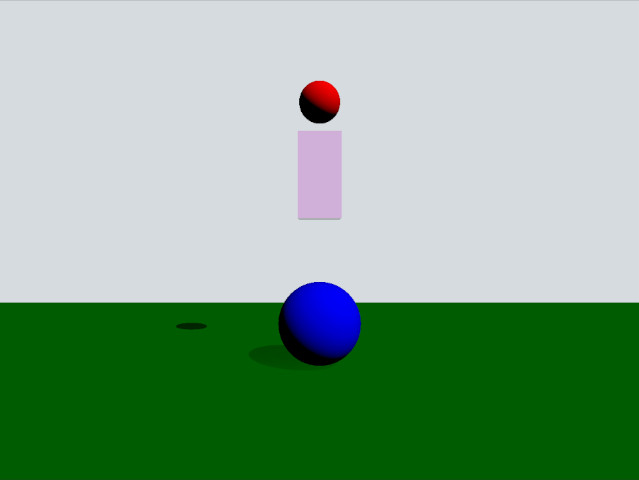
This example demonstrates how to use trigger bodies and collision info. The scene consists of a green static plane, a red dynamic sphere, a pink box trigger and a blue static sphere. When the red sphere overlaps the trigger body it will turn yellow and when it collides with the blue sphere it will be repelled away.
Setup▲
As usual we need to add our https://:
PhysicsWorld {
    gravity: Qt.vector3d(0, -490, 0)
    scene: viewport.scene
}
We also add a https:// where we put our scene objects. In this we have some settings for the visual environment:
environment: SceneEnvironment {
    clearColor: "#d6dbdf"
    backgroundMode: SceneEnvironment.Color
}

PerspectiveCamera {
    position: Qt.vector3d(0, 200, 1000)
    clipFar: 2000
    clipNear: 1
}

DirectionalLight {
    eulerRotation.x: -45
    eulerRotation.y: 45
    castsShadow: true
    brightness: 1
    shadowFactor: 100
}
Physical objects▲
We have our regular static plane:
StaticRigidBody {
    position: Qt.vector3d(0, -100, 0)
    eulerRotation: Qt.vector3d(-90, 0, 0)
    collisionShapes: PlaneShape {}
    Model {
        source: "#Rectangle"
        scale: Qt.vector3d(500, 500, 1)
        materials: PrincipledMaterial {
            baseColor: "green"
        }
        castsShadows: false
        receivesShadows: true
    }
}
This is how our dynamic sphere is defined:
DynamicRigidBody {
    id: sphere
    massMode: DynamicRigidBody.CustomDensity
    density: 0.00001
    position: Qt.vector3d(0, 600, 0)
    property bool inArea: false
    sendContactReports: true
    receiveTriggerReports: true

    onEnteredTriggerBody: {
        inArea = true
    }
    onExitedTriggerBody: {
        inArea = false
    }

    collisionShapes: SphereShape {}
    Model {
        source: "#Sphere"
        materials: PrincipledMaterial {
            baseColor: sphere.inArea ? "yellow" : "red"
        }
    }
}
The property inArea is a custom property we use to keep track of when the sphere is overlapping the box trigger body. This is then used for the baseColor property to make the sphere yellow when it is overlapping the box and red otherwise. Since we want the sphere to partake in contact reporting the property https:// needs to be set to true. Since we also want the sphere to get callbacks when entering and leaving a https://, the property https:// is also set to true. We implement the https:// and https:// signal methods on the sphere where we set the inArea property to true or false when entering or leaving the trigger body.
Now let's look at the trigger body:
TriggerBody {
    position: Qt.vector3d(0, 350, 0)
    scale: Qt.vector3d(1, 2, 1)

    collisionShapes: BoxShape {
        id: boxShape
    }
    Model {
        source: "#Cube"
        materials: PrincipledMaterial {
            baseColor: Qt.rgba(1, 0, 1, 0.2)
            alphaMode: PrincipledMaterial.Blend
        }
    }
}
The qml type is a https:// which acts like a static body except its collisions are inactive. Instead it will trigger https:// and https:// method calls on the sphere.
Finally, lets look at the impeller:
StaticRigidBody {
    position: Qt.vector3d(0, 0, 0)
    scale: Qt.vector3d(2, 2, 2)
    receiveContactReports: true

    collisionShapes: SphereShape {}

    Model {
        source: "#Sphere"
        materials: PrincipledMaterial {
            baseColor: "blue"
        }
    }

    onBodyContact: (body, positions, impulses, normals) => {
        for (var normal of normals) {
            let velocity = normal.times(-700)
            body.setLinearVelocity(velocity)
        }
    }
}
This is a static body and we set https:// to true to enable the collision callbacks. The callback https:// gets called whenever a collision is reported. In the method we call https:// to set the linear velocity in the opposite direction of the collision normal vector to simulate an impeller.
List of Files▲
Files:
List of Files▲
-
impeller/CMakeLists.txt
-
impeller/impeller.pro
-
impeller/main.cpp
-
impeller/main.qml
-
impeller/qml.qrc